20 Nov 2026
Post by Elowenly
Introduction
You want a fast way to share your Discord profile from your phone without digging through menus. This guide shows exactly how to get your Discord profile link on mobile, starting with the quickest in-app option and moving to a guaranteed method that works every time. You will also learn how to build a link for someone else, what to do when the button you expect is missing, and how to keep your profile secure when you post the link.
We will start by clarifying what the link is and how it behaves on a phone. Then we will walk through three practical methods, followed by platform tips, troubleshooting, and privacy controls. Each section connects to the next so you can follow along from first tap to final share without backtracking.
What a Discord profile link is and how it works on mobile
Before we copy anything, it helps to understand what you are sharing. A Discord profile link points to a profile page tied to a permanent numeric User ID. The format is simple: https://discord.com/users/USER_ID. When someone taps your link, Discord tries to open your profile in the app. If the app is not installed or cannot handle the link, the link opens in a browser and may prompt a login.
The profile page shows your avatar, display name, and some basic information. It does not automatically let people message you. To chat, they still need a mutual server or an accepted friend request, unless your privacy settings allow DMs from server members. This makes the link safe to share with some simple precautions.
With that picture in mind, you can choose the best way to get your link on a phone. The next section gives a quick snapshot of your options so you can pick the right path and move straight to the steps.
At-a-glance: Three ways to get your Discord profile link on a phone
- Fastest: Use the Share Profile button in the Discord app.
- Most reliable: Turn on Developer Mode, copy your User ID, and build https://discord.com/users/USER_ID.
- For other users: Copy their User ID and build the same link.
If you see the Share Profile option, use it first. If not, the User ID method works on every account and lets you build a stable link that does not change when you update your name. With your choice made, let us jump into the steps for the quick in-app share.
Method 1: Use the Share Profile button in the Discord app (iPhone & Android)
The in-app button is the quickest way to grab your link. If you do not see this button, skip to Method 2 for the guaranteed route.
On iPhone
1) Open Discord and tap your avatar at the bottom right to open User Settings.
2) Tap your profile card at the top to view your profile.
3) Tap the three dot More icon.
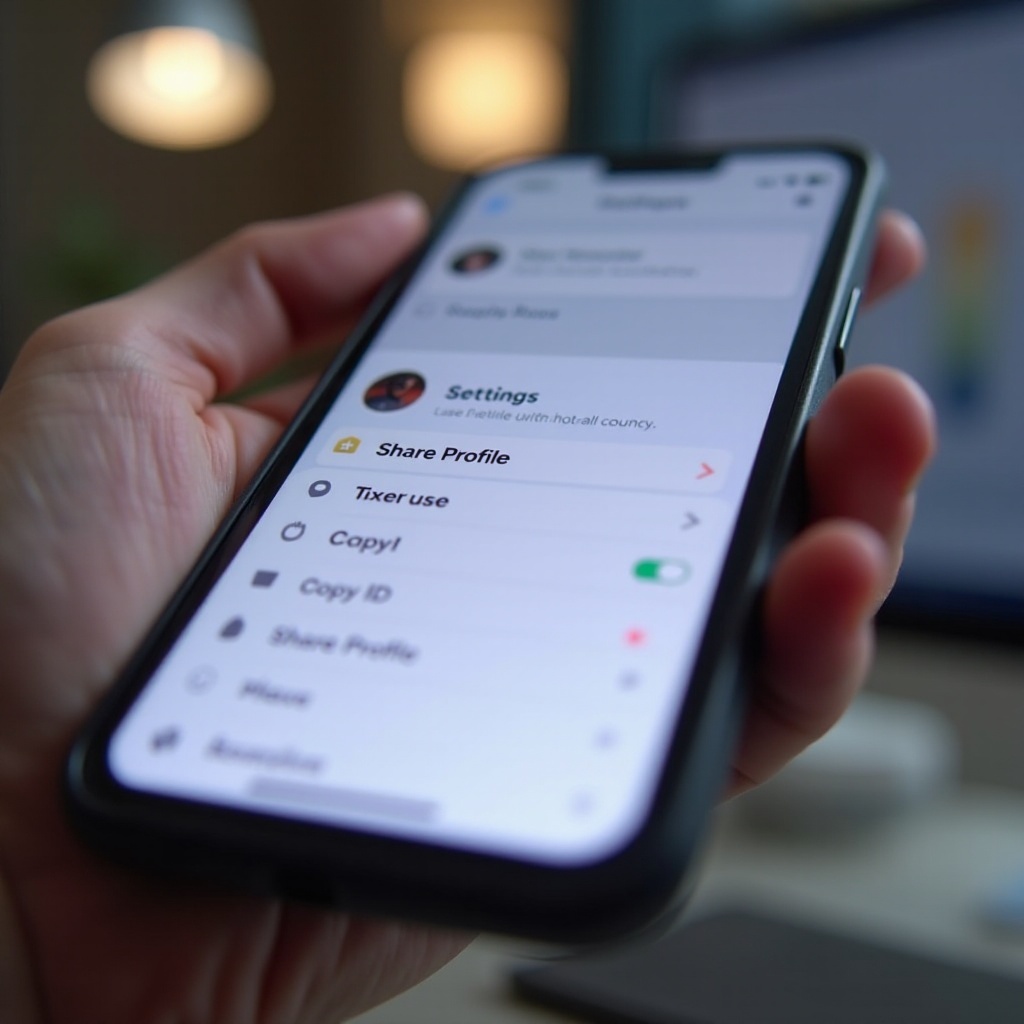
4) If you see Share Profile, tap it. Choose Copy Link to copy to your clipboard or share directly via Messages, Mail, or another app.
5) Paste the link somewhere safe, like Notes, to confirm it looks like https://discord.com/users/NUMBERS.
On Android
1) Open Discord and tap your avatar at the bottom right.
2) Tap your profile card to open your profile.
3) Tap the three dot More icon.
4) Tap Share Profile and select Copy to clipboard or pick a target app.
5) Paste the link to verify the format.
Notes and tips:
– If Share Profile is missing, use Method 2 to build the link from your User ID.
– The link maps to your permanent User ID. Changing your username or display name does not change this link.
– If the link opens a browser instead of the app, you can choose Open in Discord when prompted or adjust app link settings as described in the platform tips section.
You now have the fastest method under your belt. If Share Profile is not available or you prefer a method that always works, continue to the User ID workflow next.
Method 2: Build your Discord profile link with your User ID (Developer Mode)
This method works for every account on both iOS and Android. You will enable Developer Mode, copy your numeric User ID, and build the link by hand. It is simple and creates a link that stays valid even as you change names.
Enable Developer Mode
- iPhone: Open Discord, tap your avatar, scroll to App Settings, tap Advanced, and turn on Developer Mode.
- Android: Open Discord, tap your avatar, scroll to App Settings, tap Advanced, and turn on Developer Mode.
Copy your User ID
- Return to your profile: tap your avatar, then tap your profile card.
- Tap the three dot More icon.
- With Developer Mode on, you should see Copy ID. Tap it to copy your numeric User ID.
- If Copy ID is missing on your profile screen, open a DM you sent, tap your avatar, and look for More. Developer Mode must be on for Copy ID to appear.
Build and test the link
- Compose the URL as: https://discord.com/users/USER_ID
- Replace USER_ID with the number you copied. Do not add spaces or extra characters.
- Paste the URL in Notes and tap it. If the app is installed, your profile should open in Discord. If not, your browser will load a login prompt.
- Ask a friend to test the link. They should see your profile with options to add you or view mutual servers.
Why this method is best:
– The link uses your permanent User ID. It does not change when you alter your display name or handle. That stability makes it ideal for bios, sites, and long term sharing.
With your own link sorted, you might need to share someone else’s profile. The next method covers how to build a link for another user from your phone.
Method 3: Get someone else’s Discord profile link on mobile
Sometimes you need to share a teammate’s profile with a group or a moderator. You can build a link for any user by copying their User ID and using the same URL format.
From a DM or server
1) Open the DM with the person or navigate to a server you both share.
2) Tap their avatar to open their profile.
3) Tap the three dot More icon.
4) With Developer Mode on, tap Copy ID.
From a member list or voice channel
1) Open the server’s member list or the voice channel participant list.
2) Tap the user’s avatar and choose More.
3) Tap Copy ID.
Build and share responsibly
- Build the link as https://discord.com/users/USER_ID and replace USER_ID with the copied number.
- Get consent before you post someone else’s link publicly. Some users do not want unsolicited requests.
If Copy ID is not visible, confirm that Developer Mode is enabled in App Settings. After you can share links for yourself and others, you may still want options that do not rely on links. The next section offers practical alternatives.
Alternatives when a link is not available: username, server invite, and QR shortcuts
There are times when a direct link is not ideal. You may not want to post it publicly, or the in-app option may be missing. These alternatives help you connect without a profile URL.
- Share your unique username or handle: Open your profile and copy your current username or handle. Send it in a message. Friends can search and add you directly.
- Send a controlled server invite: Create a limited invite with an expiration and a maximum number of uses. This gives you a shared space before you accept a friend request. Tap the server name, choose Invite, and set the options.
- Use a QR code shortcut: Paste your profile link into a QR generator and save the image. Store it in your camera roll. At events, someone can scan and open your profile quickly.
These options keep you reachable while you decide how and where to use your link. Next, optimize how the link opens on different phones.
Platform-specific tips for iOS and Android (clipboard, default browser, app links)
Your link should open smoothly in the Discord app. If it does not, a few settings can fix the handoff. These tips build on the methods above and help you avoid extra taps.
iPhone tips:
– Use the share sheet carefully: After tapping Share Profile and Copy Link, paste into Notes to confirm the URL. Some apps strip links when sharing directly.
– Open in the Discord app: If the link opens in Safari, look for an Open in Discord banner at the top. If you see it, tap it. You can also long press the link and choose the Discord app.
– Clipboard permission: If iOS asks to allow paste for an app, approve it so the link moves between Discord and your notes or messages.
Android tips:
– Set a default browser and allow app links: Go to Settings, Apps, Default apps, Browser. Chrome works well for most users. Also, in Settings, Apps, Discord, Open by default, allow supported links.
– Clear link defaults: If the link always opens in the wrong app, reset defaults for the browser or Discord under Open by default and try again.
– Clipboard managers: Some Android builds restrict clipboard access. If Copy to clipboard fails, share the link to a notes app or send it to yourself in a DM to capture it.
With link handling streamlined, you will likely avoid most issues. If a snag remains, move on to the troubleshooting checklist.
Troubleshooting: link does not work, Share Profile missing, Copy ID not showing
Most problems fall into a few buckets. Work through these quick fixes in order.
- Link opens a login page: You might not be signed in on the browser that intercepted the link. Sign in to Discord on that browser once. Then retap the link. On iPhone, use the Open in Discord banner. On Android, set Discord to open supported links under Open by default.
- Link shows Unknown User or a blank profile: You likely pasted an incorrect or partial User ID. Copy the ID again with Developer Mode enabled and rebuild the link without spaces.
- Share Profile is missing: Not all accounts or app versions show this button. Update the Discord app from the App Store or Google Play. If it is still missing, use the User ID method.
- Copy ID is not visible: Developer Mode must be on. Toggle it in App Settings, Advanced. If still missing on your profile, try the More menu from a DM or server member list. Restart the app after toggling Developer Mode.
- Link opens the wrong app or an app store: On iPhone, long press the link and choose Discord if available. On Android, clear defaults for the browser or for Discord and retest the link.
- Nothing happens when tapping the link: Close Discord and the browser fully, then retry. If your app is outdated, update it and try again.
- Clipboard will not paste: Some apps block URL pasting. Paste the link into a neutral app like Notes, then copy from there to your destination.
These checks resolve most cases in minutes. Once your link works as expected, take a moment to set guardrails that match how public you want to be.
Privacy and safety when sharing your Discord profile link
A public profile link can attract attention. A few settings help you keep control without going dark.
- Friend request controls: Go to User Settings, Privacy and Safety, and adjust Who can add you as a friend. Limit to Friends of Friends if you expect more requests.
- Direct messages: In Privacy and Safety, turn off Allow direct messages from server members for new servers if you want fewer cold DMs.
- Profile visibility: Review your About Me and linked accounts. Remove personal details you do not want visible to new contacts.
- Server DMs and mutual servers: Remember that your link does not bypass permissions. People still need your approval or a mutual server to chat unless you allow server DMs.
- Block and report: If you get spam or harassment, block the user and use Report from the profile menu.
With privacy tuned, you can post your link where it works best for you and your audience.
Pro sharing tips: best places to share from your phone (bios, messages, contact cards)
You have a working link and safe settings. Now pick smart placements that your audience checks and that open cleanly on mobile.
- Social bios: Add the link to your link in bio page or a profile bio that allows URLs. Test on your phone to confirm it opens in the Discord app.
- Portfolio or website: Place the link on a contact page next to email and other socials. Use clear text like Chat on Discord.
- Messages and email: When you share the link in DMs or email, include a short line that says what to do, such as Tap to view my profile and add me.
- Contact card: Store the URL in your own contact card and share it with a single tap at meetups.
- QR code: Keep a QR image of your link in your camera roll for in person scans.
After you place the link, do a quick test on a second device if you can. Then lock in a simple routine to share it again later.
Final mobile checklist before you share your Discord profile link
- Confirm the format: https://discord.com/users/NUMBERS_ONLY
- Test on your phone, then ask a friend to tap it.
- Update the Discord app to the latest version on iOS or Android.
- Turn on Developer Mode if you need Copy ID.
- Set your friend request and DM preferences.
- Decide where you will share: bio, website, messages, or QR.
- Save the link in Notes for quick access.
Complete this list once and you can share your link quickly any time.
Conclusion
You now have two reliable ways to get your Discord profile link on mobile and a third method to build links for others. The Share Profile button is fastest when it appears. The Developer Mode route works on every account by generating a stable link from your User ID. With platform tips, troubleshooting steps, and privacy settings in place, you can share your link confidently and keep control of your inbox. Store the link where you can grab it, test it before you post, and use the checklist to avoid surprises. Every tap should open the right profile and invite the right conversations.
Frequently Asked Questions
Why does my Discord profile link open a login page on my phone?
This happens when your browser intercepts the link and you are not signed in. Log in to Discord in that browser once, then tap the link again. On iPhone, use the Open in Discord banner if it appears. On Android, set Discord to open supported links in Settings, Apps, Discord, Open by default.
Can I change my Discord profile link after I update my username?
Your profile link is tied to your numeric User ID, not your display name or handle. Updating your name does not change the link. You can keep using the same URL everywhere. If you want to confirm, copy your User ID again in Developer Mode and compare it to the number in your link.
Is it safe to post my Discord profile link publicly?
It is generally safe, but you may get more friend requests or DMs. Before posting, limit who can add you, review DM settings, and remove personal info from About Me. If someone bothers you, block and report them. A link does not expose your email or phone, and people still need approval or a mutual server to chat unless you allow server DMs.