
15 Nov 2026
Post by Elowenly
Introduction
You tap the plus button in a Messages chat, expect to share a live pin, and the option is missing or fails to send. If you keep asking why wont it let me share my location on iMessage, you are likely hitting one of a short list of blockers. Common causes include an inactive iMessage account, disabled Location Services, a Screen Time or Safety Check restriction, a network path problem, or a managed profile that locks settings.
You do not need guesswork. Follow a simple path: confirm Apple services are up, update your iPhone, verify iMessage activation, enable the right permissions, and remove restrictions. Then test with clean networks and controlled resets if needed. We will start with a quick look at how iMessage location sharing works. That context makes each fix make sense.
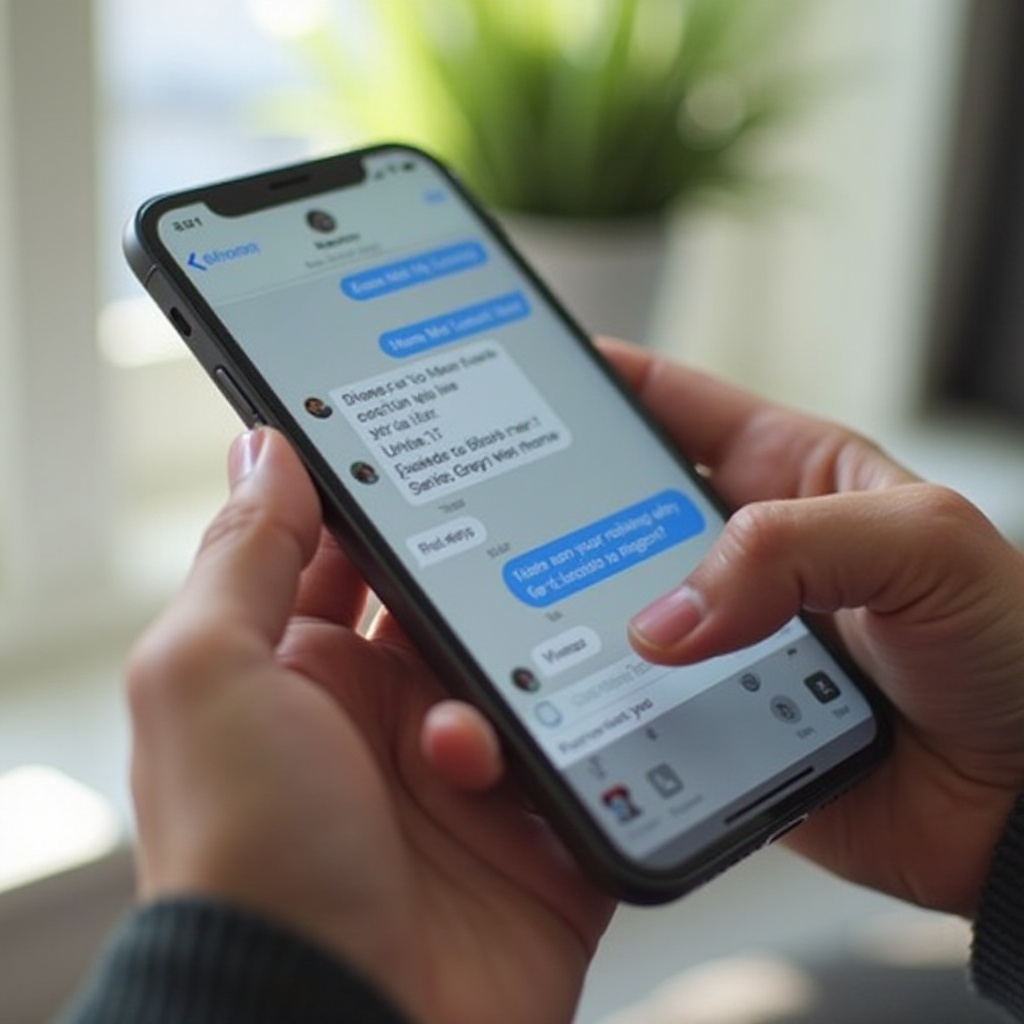
How iMessage Location Sharing Works
iMessage can send a live location that updates or a one time pin from Apple Maps. It only works in iMessage threads, which show blue bubbles. SMS or MMS threads show green bubbles and do not support iMessage live location. Sharing depends on several switches and services working together.
You need iMessage activated on your phone number or Apple ID. You must turn on Location Services system wide, enable Share My Location in Find My, and give Messages location permission. You also need a stable data path over Wi Fi or cellular. Any restriction that disables location or blocks Messages can break sharing.
With the basics in place, clear the simple issues first. Quick checks often restore the share button in under a minute.
Quick Checks: 60 Second Fixes
Run these fast actions before you dive into deeper settings:
– Check bubble color. If the thread is green, it is SMS. Start a new message to the same contact and make sure it sends as blue.
– Restart the iPhone. Power off, wait 10 seconds, power on.
– Toggle Airplane Mode on for 10 seconds, then off.
– Turn Bluetooth on to help with location precision and handoff.
– Open Maps and tap the target arrow to center on you. If Maps cannot find you, fix that first.
– Force quit Messages, reopen, and try sharing again.
– Turn off any VPN or proxy and test again.
– If you use iCloud Private Relay for Safari, leave it on, but know that some networks still block traffic. You will test networks next.
If quick checks fail, verify that Apple services are not having an outage.
Confirm Apple System Status for iMessage and Find My
Apple sometimes reports temporary issues. Visit the Apple System Status page and confirm iMessage and Find My show normal status. If there is an outage or degraded performance, wait until Apple resolves it and try again. If everything is normal, the issue is likely on your device, account, or network.
With services confirmed, make sure your software and carrier stack are current. Updates fix bugs that can block sharing.
Update iOS, iMessage, and Carrier Settings
Updates often restore broken features and improve reliability.
– iOS update: Settings > General > Software Update. Install the latest version.
– Carrier settings: Settings > General > About. If a carrier update prompt appears, tap Update.
– iCloud sign in: Settings > your name. Confirm you are signed in and iCloud is available.
After any update, restart your iPhone and test. If sharing still fails, confirm that iMessage is activated and reachable.
Verify iMessage Activation and Reachability
Sharing requires a working iMessage identity.
– Go to Settings > Messages and turn iMessage on.
– Tap Send and Receive. Confirm the correct Apple ID shows. Make sure your phone number appears with a checkmark. Under Start New Conversations From, select the number you want.
– If you see Waiting for activation, turn iMessage off, wait 30 seconds, and turn it back on. Keep cellular data and SMS available while it activates.
– If reachability looks wrong, sign out of your Apple ID in Settings > your name, then sign back in.
When iMessage is active and reachable on your number, set up the location permissions that power sharing.
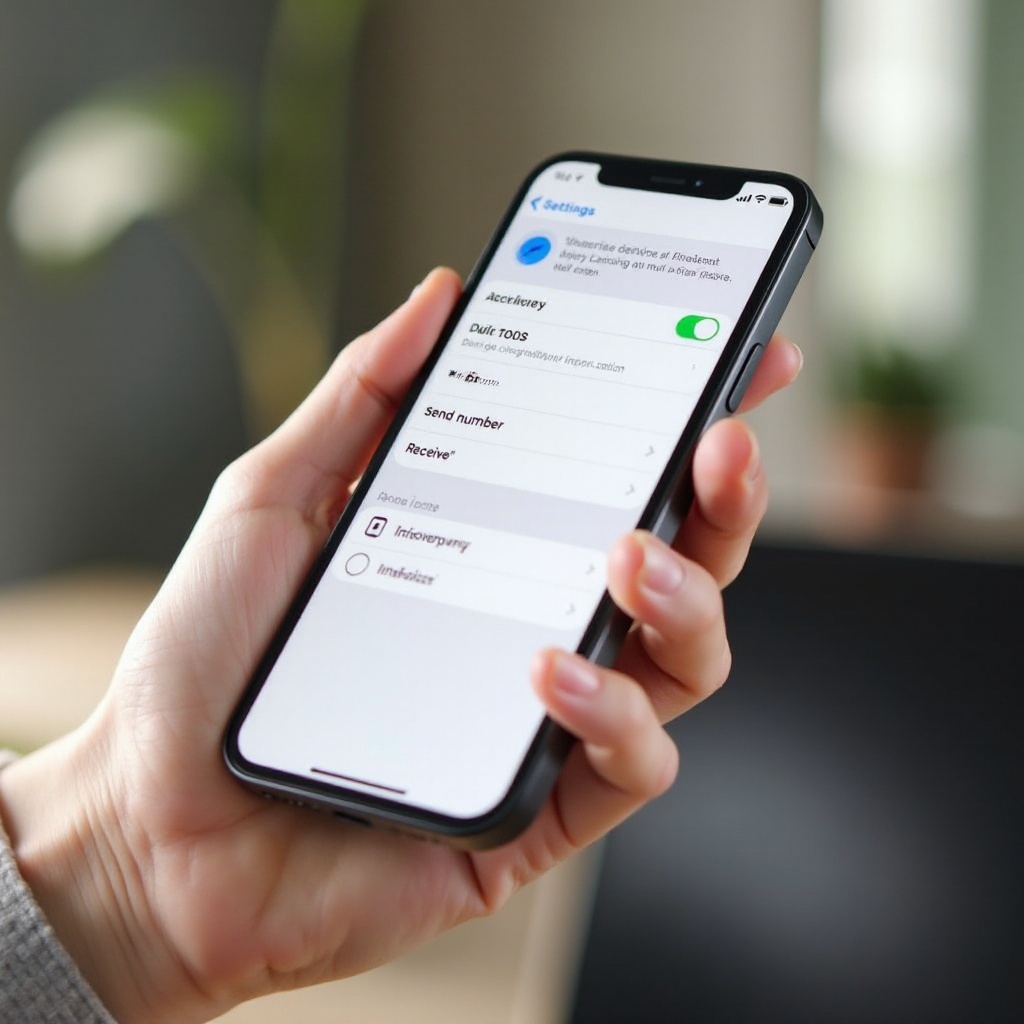
Turn On Location Services and Share My Location
Two master switches control location sharing.
– Location Services: Settings > Privacy and Security > Location Services. Turn it on.
– Share My Location: Settings > your name > Find My > Share My Location. Turn it on.
Then allow Messages to use location.
– Settings > Privacy and Security > Location Services > Messages. Set to While Using the App and turn on Precise Location.
– Open Find My. Tap Me. Confirm Share My Location is on and My Location is this iPhone, not another device like an iPad.
– Open Maps to confirm you have a clear and accurate blue dot.
If the Share My Location control is greyed out, fix that next because a restriction or profile often causes it.
Fix Share My Location Greyed Out
A greyed out switch means your device cannot change the setting due to policy, account, or time settings.
– Confirm iCloud sign in in Settings > your name. Without iCloud, sharing cannot work.
– Sign out and sign back in to your Apple ID to refresh entitlements.
– Check profiles: Settings > General > VPN and Device Management. If a configuration profile controls privacy, it may block location. Remove it if you installed it or ask your admin to allow location.
– Set the date and time automatically: Settings > General > Date and Time > Set Automatically. Incorrect time can break services.
If the device shows a Screen Time passcode or privacy lock, adjust those settings next because they override app level permissions.
Remove Restrictions: Screen Time and Content and Privacy
Screen Time can disable location or block Messages without obvious warnings.
– Go to Settings > Screen Time. If it is on, open Content and Privacy Restrictions.
– Tap Location Services. Set to Allow Changes and ensure Location Services is on.
– Tap Apps and confirm Messages is allowed.
– If you use a Screen Time passcode and cannot change settings, you need that passcode to lift the block.
After changing any restriction, force quit Messages and try again. If sharing remains off, review Safety Check and emergency privacy tools.
Safety Check and Emergency Sharing Considerations
Safety Check lets you quickly revoke sharing and access. If you ran Safety Check, your device may have turned off Share My Location in Find My and removed access for Messages.
– Go to Settings > Privacy and Security > Safety Check.
– Review Sharing and Access. Restore sharing for trusted people and apps.
– Re enable Share My Location in Settings > your name > Find My.
With privacy controls restored, test your network path. Many failures come from captive portals, VPNs, or strict firewalls.
Network Issues: Wi Fi, Cellular, VPN, and Private Relay
iMessage uses data, so a weak or blocked connection can stop sharing.
– Test on cellular only. Turn off Wi Fi and try to send your location.
– Test on a different Wi Fi network. Home, work, and public networks can behave differently.
– Disable Low Data Mode for cellular and Wi Fi networks. Low data modes can throttle background updates.
– Turn off any VPN or corporate proxy and try again. Some VPNs block Apple push services.
– If a public Wi Fi uses a captive portal, open Safari and complete the sign in page.
– Reset network settings: Settings > General > Transfer or Reset iPhone > Reset > Reset Network Settings. This clears Wi Fi and VPN profiles. Reconnect and test.
If the network path is clean, make sure power saving features are not throttling background location updates.
Power and System Settings: Low Power, Background App Refresh
Battery saving features can limit live updates and cut location accuracy.
– Turn off Low Power Mode in Settings > Battery.
– Enable Background App Refresh in Settings > General for Messages and Find My.
– Keep your battery above 20 percent for more stable updates.
– Close heavy apps if the device feels hot or slow. Thermal throttling can delay refreshes.
With power settings set for reliability, check basic system info like time zone and region. Small errors can break security checks.
Date, Time, Region, and Location Accuracy
Certificates and services rely on correct time and region.
– Settings > General > Date and Time > Set Automatically on and verify your time zone.
– Settings > General > Language and Region > Region set to your current country.
– Improve accuracy: step outside, open Maps, and wait for the blue dot to lock on your position.
If you use more than one cellular line, your line settings can affect which conversations support live sharing.
Dual SIM eSIM, Number Selection, and Roaming
Using two lines can confuse iMessage identity and thread routing.
– Settings > Messages > Send and Receive. Ensure the correct number is checked and set as Start New Conversations From.
– If a thread started from a different line, start a fresh thread from the iMessage enabled line and try sharing again.
– If you are traveling, enable Data Roaming for the active line in Settings > Cellular. Some carriers block iMessage activation while roaming.
– After swapping SIMs or eSIMs, turn iMessage off, restart, and turn it back on to bind the new number.
If the problem only appears with one person or one group, review contact and thread specifics next.
Contact and Conversation Specific Issues
Sharing can fail in certain threads due to contact data or mixed participants.
– Confirm the contact uses iMessage. Blue bubbles are required for live location. Android users cannot receive live iMessage location.
– Check for blocked contacts in Settings > Messages > Blocked Contacts or from the thread info screen.
– Merge or clean duplicate contact cards. Make sure the card you use has the number or Apple ID that receives iMessage.
– In mixed groups with non iPhone users, iMessage location options do not appear. Share a Maps link instead.
If a child account or family member is involved, Family Sharing controls may govern location access.
Family Sharing, Child Accounts, and Parental Controls
Family Sharing can allow or restrict location for child accounts.
– On the organizer device: Settings > your name > Family > select the child > Location Sharing. Allow sharing.
– On the child device: Settings > child name > Find My > Share My Location on.
– Review Screen Time for the child and allow Location Services and Messages.
If a work or school profile manages your device, your admin may restrict location. Check that next.
Managed Devices: MDM Profiles and Work VPNs
Company or school management can lock privacy settings for compliance.
– Settings > General > VPN and Device Management. Review MDM profiles and installed VPNs.
– If a policy disables location sharing, you must contact IT or use a personal device to share.
– If you installed a third party VPN, disconnect and test. Request VPN exceptions for Apple push and Find My if needed.
If none of these steps restore sharing, run controlled resets and clean tests to isolate device vs account issues.
Advanced Resets and Clean Tests
Work through these in order to avoid extra data loss:
1. Sign out of iCloud in Settings > your name, restart, and sign back in. Test sharing.
2. Reset Location and Privacy: Settings > General > Transfer or Reset iPhone > Reset > Reset Location and Privacy. Reopen apps and grant permissions when prompted.
3. Reset Network Settings as noted earlier. Reconnect and test in a simple one to one iMessage thread.
4. Test your Apple ID on another iPhone or iPad if possible. Also test another Apple ID on your iPhone. If your account works on another device, your iPhone has the issue. If another account fails on your iPhone, the device is at fault.
5. As a last resort, back up to iCloud or a computer, then erase all content and settings. After the erase, set up as new, sign in, and test sharing before restoring all apps and profiles.
If sharing still fails after clean tests, it is time to contact Apple with details so support can check server side flags and logs.
When to Contact Apple Support and What to Prepare
Reach out to Apple when iMessage will not activate after 24 hours, Share My Location stays greyed out after resets, or your Apple ID shows unusual errors. Prepare key facts to speed up triage.
– Apple ID email, phone number, carrier, and iOS version
– Exact steps that fail and any screenshots of errors
– Networks you tested, such as home Wi Fi names and cellular status
– Whether Screen Time, Safety Check, or MDM profiles are active
This context helps support rule out server issues and pinpoint the blocker quickly.
Conclusion
When you ask why wont it let me share my location on iMessage, the fix almost always lives in one of five places. Activate iMessage on the right number. Turn on Location Services and Share My Location with Messages permission. Remove Screen Time or Safety Check restrictions. Stabilize your network by testing across cellular, Wi Fi, and without VPN. Check for managed profiles that lock privacy.
Move in a clean sequence. Start with quick checks and Apple system status. Update iOS and carrier settings. Verify Send and Receive, then enable Share My Location in Find My. If you see a greyed out switch, review profiles, time settings, and Screen Time. When needed, run network and privacy resets and test with a fresh iMessage thread. If you still hit a wall, contact Apple Support with clear notes and screenshots. These steps restore iMessage location sharing for most users and help you fix the rest with minimal guesswork.
Frequently Asked Questions
Why is Share My Location missing in one iMessage chat but works in others
That thread may be SMS with green bubbles, include Android users, or use a different line than your iMessage number. Start a new blue bubble thread from your iMessage number and try again.
Can I share my location with someone who uses Android
You cannot send a live iMessage location to Android. Share an Apple Maps pin via SMS or send a link from a cross platform app like Google Maps or WhatsApp.
Will Low Power Mode stop live location sharing in iMessage
Low Power Mode can throttle background updates and reduce accuracy. Turn it off and allow Background App Refresh for Messages and Find My to keep live sharing stable.