13 Jul 2026
Post by Elowenly
Introduction
Finding your PS4 controller refusing to connect can throw a wrench in your gaming plans. Whether it’s unanticipated lag or a total disconnect, such hiccups disrupt the immersive gaming experience. Luckily, these issues aren’t unresolvable. Understanding common connection problems and applying practical solutions can swiftly get you back in the game. Let’s delve into various ways to address these challenges—from basic troubleshooting to more advanced fixes, ensuring your controller is fully operational again.
Understanding the Connection Issues
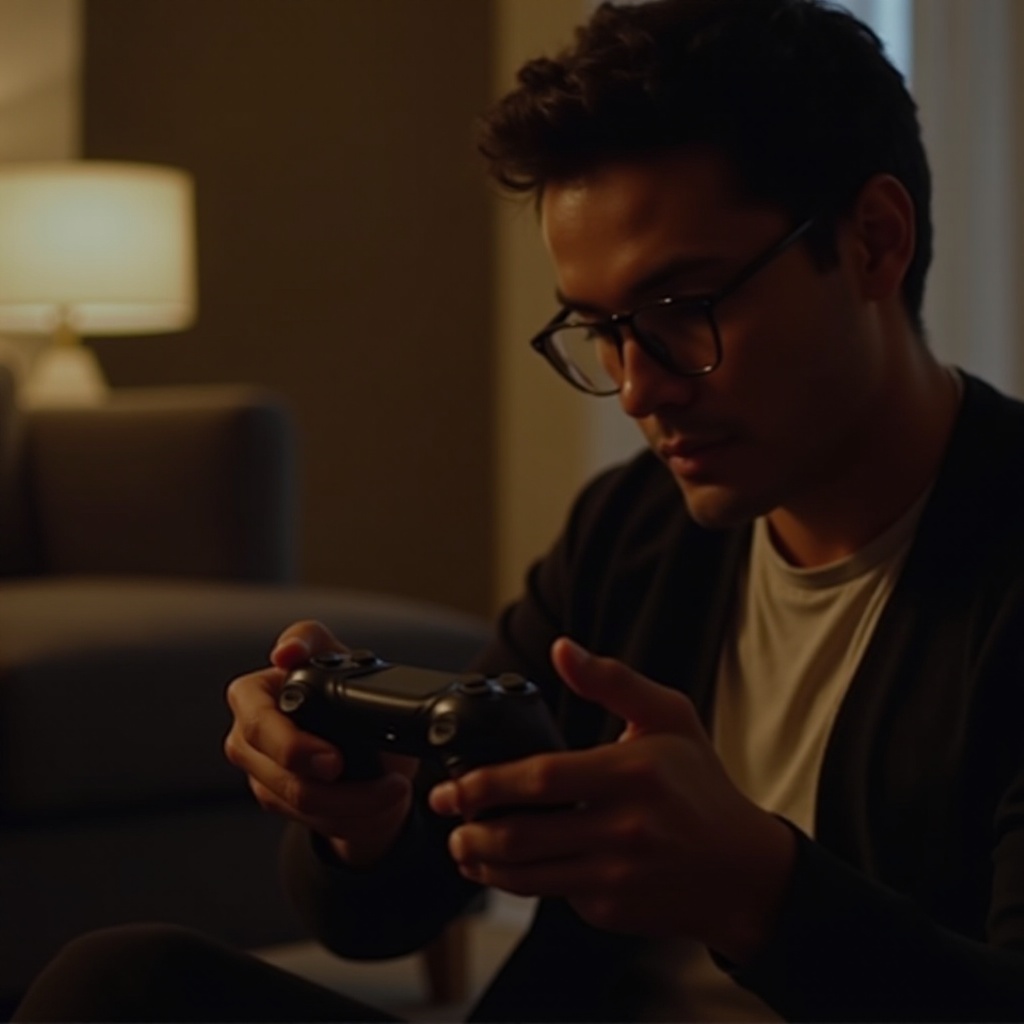
PS4 controller connectivity problems can arise unexpectedly, interrupting an exciting gaming session. Various factors, such as low battery power, faulty cables, or interference from nearby Bluetooth devices, can be culprits. Even outdated PS4 system software might trigger these errors. Distinguishing whether the issue is restricted to one controller or affects multiple ones can help determine if the problem is inherent or device-related. By pinpointing these problems early, you pave the way for implementing effective solutions to enjoy uninterrupted gameplay.
Basic Troubleshooting Steps
When grappling with connectivity issues, beginning with simple solutions often yields results.
Check the Battery and Charging
- Ensure the controller is charged; drained batteries are frequent causes of connection issues.
- Link the controller to the PS4 using a USB cable to initiate charging.
- Observe if the charging light (orange) illuminates; absence can hint at cable or port issues.
Inspect the USB Cable and Port
- Look for damage or fraying in the USB cable. Damaged cables can disrupt connectivity.
- Test the cable with alternative devices to verify functionality.
- Clean the PS4’s USB port using a soft brush or gentle air blasts to remove obstructive dust or debris.
Many connectivity issues can be resolved with these basic steps. Proceed to more detailed solutions if these prove insufficient.
Reconnecting the PS4 Controller
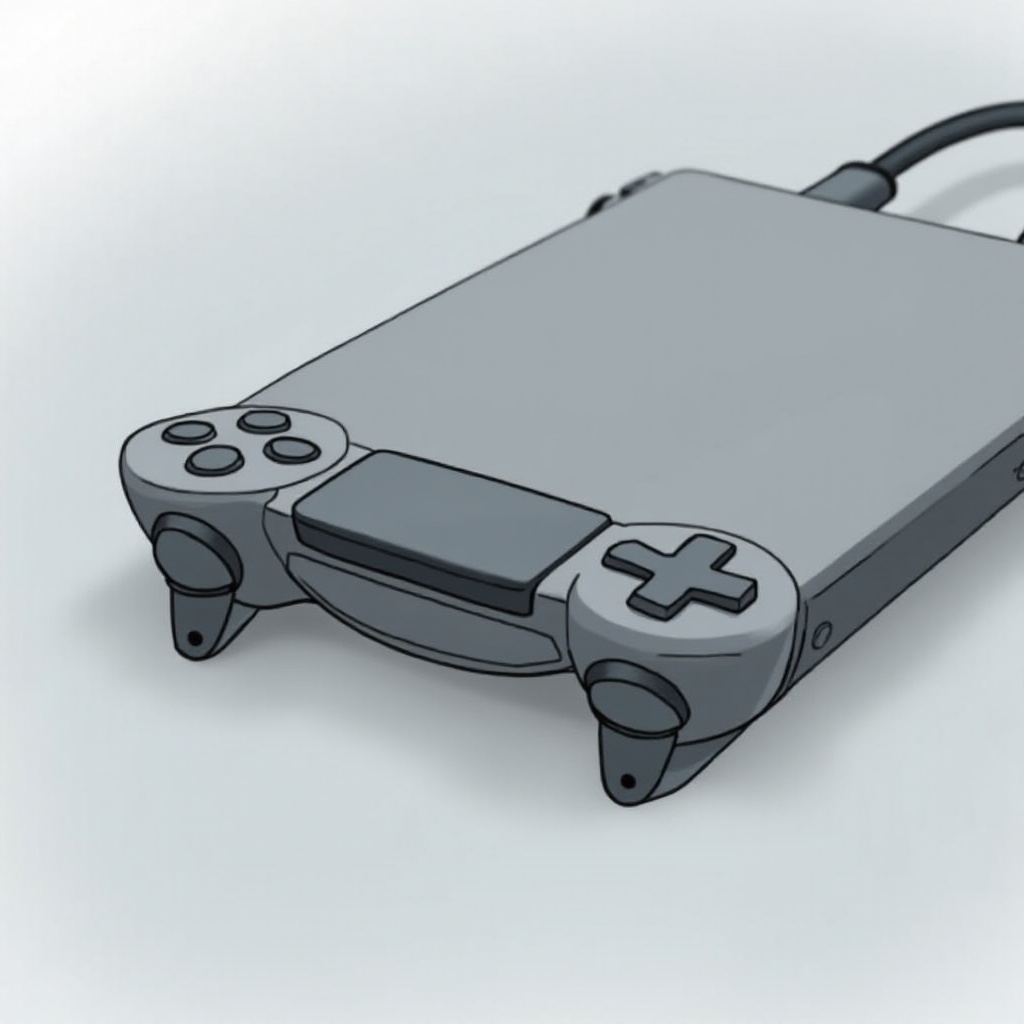
If initial troubleshooting falls short, attempt reconnecting the controller.
Wired Connection Process
- Completely power off the PS4 console.
- Attach the controller to the console through a USB cable.
- Restart the PS4 via the console’s power button.
- Use the PS button on the controller to establish a connection.
Wireless Re-syncing Methods
- Disconnect the controller and manually power down the console.
- After a brief pause, restart the console.
- Press and hold the PS and Share buttons until the controller light signifies pairing mode.
- Re-sync by selecting from the Bluetooth device list in the console’s settings.
These methods often resolve connection issues, but persistent problems may require deeper analysis.
Advanced Fixes for Persistent Connection Issues
Should reconnection fail, advanced fixes can address stubborn connectivity concerns.
Resetting the PS4 Controller
- Identify the tiny reset button on the controller’s back near the L2 shoulder.
- Use a paperclip or similar tool to hold the button for 5 seconds.
- Reconnect using a USB cable and activate with the PS button.
Updating the PS4 System Software
- Go to ‘Settings’ on the PS4 home interface.
- Select ‘System Software Update’ and follow instructions if an update is needed.
- This ensures the console software stays compatible, ironing out any connectivity bugs.
Applying these advanced strategies can often swing the balance toward a responsive controller when others fail.
Identifying and Resolving Hardware Problems
Occasionally, hardware issues necessitate deeper investigation.
Checking for Physical Damage
- Look over the controller for visible damage, focusing on buttons and sticks.
- Make sure internal components like batteries and motherboards evade damage from impact or liquids.
When to Consider Replacement
- Replace if the controller remains unresponsive post-troubleshooting with obvious damage.
- Repeated issues despite exhaustive remedies may suggest irreparable internal damage necessitating replacement.
Understanding these hardware warning signs saves time and frustration, making physical examination crucial if all other efforts fail.
Conclusion
Addressing a PS4 controller that won’t connect may seem daunting, but by employing these troubleshooting strategies, you can restore full functionality. Beginning with foundational steps and transitioning to advanced solutions, while recognizing hardware problems, ensures your gaming experience remains fluid and enjoyable. With persistence and persistence, connectivity dilemmas become solvable puzzles.
Frequently Asked Questions
Why is my PS4 controller flashing but not connecting?
Flashing indicates a syncing problem. Try re-syncing using wireless re-syncing methods discussed.
How do I reset my PS4 controller?
Locate the reset button at the back. Press it using a fine tool for 5 seconds, then reconnect with a USB.
Can I use my PS4 controller on another device if it won’t connect to the console?
Yes, as it is Bluetooth-capable, but address underlying connection issues for improved performance first.