26 Oct 2026
Post by Elowenly
Introduction
Video will not play on your iPhone, and you want a fix right away. Maybe you see a spinning wheel, a black screen with audio, or an error code. The cause usually falls into a few clear buckets: weak or restricted networks, buggy apps, incomplete iCloud downloads, unsupported file formats, or restrictive settings like Screen Time and VPN. This guide leads with fast wins, then takes you step by step through streaming apps, Safari or other browsers, and local file playback. Work through each H2 section in order, test after each fix, and note which change restores playback. The goal is simple: identify the scope, remove the common blockers, and only then use resets.
Start Here: Quick Checks You Can Do in 60 Seconds
Toggle Airplane Mode and Reconnect
Turn on Airplane Mode for about 10 seconds, then turn it off. Reconnect to Wi‑Fi or cellular. This refresh often clears stalled network handshakes that break video sessions.
Force-quit the app and reopen
Swipe up from the bottom, hold, and swipe the app away. Reopen it. This clears the current session, resets the player state, and forces a new stream request.
Soft restart the iPhone
Hold the side button and a volume button, slide to power off, wait 10 seconds, then power on. A fresh boot resets hardware acceleration, audio routing, and network stacks.
Check mute switch, volume, and Ring/Silent
Flip the Ring/Silent switch, raise volume, and check Bluetooth if audio routes to earbuds nearby. If audio routes away from the phone, the video can appear dead even though it plays.
Try a different video to confirm scope
Open a second video in another app. If that one works, you likely face an app or file issue. If none work, the cause is broader and likely network or system related.
These quick moves rule out basic glitches. Next, narrow the scope so you do not chase the wrong fix.
Identify the Scope: All Videos, Streaming Only, Browser Only, or Local Files
Determine if issue affects multiple apps or just one
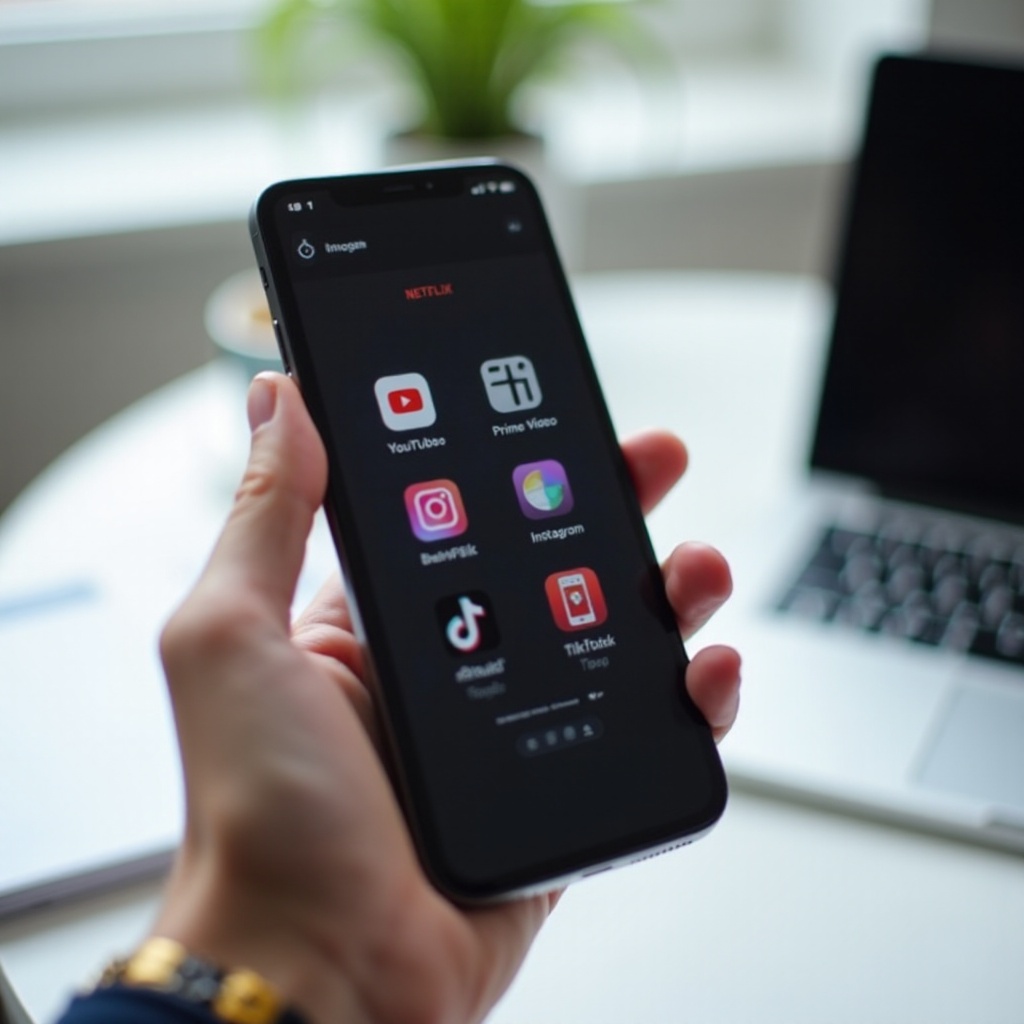
Test three to four apps: YouTube, Netflix, Instagram, and Photos. If all fail, suspect a system or network issue. If only one fails, focus on app-specific steps later.
Note if videos buffer, show black screen, or error out
Different symptoms point to different causes. Buffering suggests weak bandwidth or data saver modes. A black screen with audio hints at DRM, HDR, or a decode glitch. Error codes usually point to app updates, account status, or server issues.
Test on Wi‑Fi vs. cellular
Switch between Wi‑Fi and cellular. If videos work on one and not the other, you found the culprit layer. That directs you to network or carrier settings next.
Try sample files in Photos and Files apps
Open a short clip in Photos and a different clip in Files. If these fail, iCloud downloads may be incomplete, storage too low, or the video format unsupported.
With the scope set, you can pick the right system fixes first and avoid random changes.
System Stability: Update and Restart Essentials
Update iOS to latest version
Go to Settings > General > Software Update. Install the latest version. Updates often fix playback bugs in WebKit, video decode frameworks, and HDR pipelines.
Update all apps from App Store
Open App Store and update your apps. Streaming services change DRM and player code often. Outdated apps fail on new server rules.
Force restart vs. standard reboot
If the issue persists, force restart. Quickly press Volume Up, then Volume Down, then hold the side button until the Apple logo appears. This clears deeper faults than a standard reboot.
Check for device temperature warnings
If your iPhone feels hot, let it cool. iOS can throttle video playback when the device overheats.
If system and apps are current and stable, confirm that storage and power settings do not block downloads or streams.
Storage and Power: Free Space, Low Power Mode, and Thermal Limits
Free up storage and clear temporary files
Go to Settings > General > iPhone Storage. Keep at least 2–5 GB free. iOS needs working room for caches and temporary decode buffers. Offload unused apps and delete large downloads.
Disable Low Power Mode for playback
Open Settings > Battery and turn off Low Power Mode. Some apps lower playback speed, pause prefetching, or restrict background tasks in this mode.
Avoid overheating; remove case if hot
Thick or insulating cases trap heat during 4K or HDR playback. Remove the case and move out of direct sun. Heat can freeze frames and drop frames.
Plug into power for iCloud downloads
Big iCloud videos download faster when on power and Wi‑Fi. A low battery can delay background downloads.
With space, power, and temperature handled, your network is the next likely bottleneck.
Network Basics: Wi‑Fi, Cellular, and Low Data Mode
Test both Wi‑Fi and cellular networks
Load a video on Wi‑Fi. Then turn off Wi‑Fi and test on cellular. If only one path fails, the fix is on that path: router, ISP, or carrier settings.
Disable Low Data Mode and data limits
Open Settings > Cellular > Cellular Data Options > Data Mode. Choose Standard or Allow More Data on 5G. For Wi‑Fi, tap the Wi‑Fi network i button and turn off Low Data Mode.
Restart router or switch network
Power-cycle your router for 30 seconds. Prefer a 5 GHz SSID over 2.4 GHz. Try a different Wi‑Fi network to rule out local congestion or firewall rules.
Run a speed test to validate bandwidth
You need about 5 Mbps for stable HD and 25 Mbps for 4K. If speeds are lower, reduce in-app quality or try later. If speeds are fine, check privacy tools next.
If bandwidth and routing look good, privacy layers like VPN or DNS filters can still block player scripts and license checks.
Privacy, VPN, and DNS Factors That Break Playback
Disable VPN, iCloud Private Relay, or DNS filters temporarily
Turn off your VPN app. Disable iCloud Private Relay for a quick test. Pause DNS filtering in any security app. Many services block DRM over anonymized or filtered routes.
Try default DNS vs. custom
Go to Wi‑Fi settings, tap the i button, choose Configure DNS, and set it to Automatic. Test again. If playback returns, your custom DNS blocked a CDN domain.
Check firewall or parental router settings
Home routers with parental controls can block streaming hosts. Loosen rules, disable Safe Browsing modes, or add allowlists for your streaming apps.
Once the network path is clean, fix the apps that fail most often: streaming clients.
Fix Streaming Apps: YouTube, Netflix, Instagram, TikTok, Prime Video
Toggle in-app Data Saver and Quality settings
Open the app settings. Turn off Data Saver. Set quality to Auto or a lower tier if bandwidth fluctuates. Many apps pause or stall in aggressive saver modes.
Sign out and sign back in; clear cache or offload the app
Sign out, then sign back in to refresh tokens. Offload the app in Settings > General > iPhone Storage, then reopen. This clears cache without removing documents.
Reinstall the app and re-grant permissions
Delete and reinstall from the App Store. Launch and allow permissions like Cellular Data and Local Network when prompted.
Verify subscription, account region, and DRM messages
For Netflix or Prime Video, confirm your subscription and region. If you see license errors, follow the app link to renew or fix the account.
Allow Cellular Data and Background App Refresh
Open Settings > Cellular and enable data for the app. In Settings > General > Background App Refresh, allow it. Some apps use background tasks to stage streams.
If web videos cause issues instead, shift to browser playback fixes next.
Browser Video Playback: Safari, Chrome, and Content Blockers
Clear history and website data in Safari
Go to Settings > Safari and tap Clear History and Website Data. This removes stale cookies, broken local storage, and old service worker files.
Disable content blockers, Reader mode, and extensions
Turn off content blockers and extensions temporarily. Exit Reader mode. Ad or script blockers often break video player code.
Reset Experimental Features to defaults
Settings > Safari > Advanced > Experimental Features > Reset All to Defaults. Leftover toggles from past tests can disable key APIs for playback.
Ensure JavaScript is enabled
In Settings > Safari > Advanced, turn on JavaScript. Most web players need it for controls, DRM, and adaptive streaming.
Try Chrome, Edge, or Firefox and compare
Test the same video in another browser. If it plays elsewhere, the fault is in Safari data, extensions, or experiments. Keep blockers off or reset Safari.
If your own recorded clips or downloads fail, check iCloud status and file availability next.
Photos and iCloud: Local Videos, Live Photos, and Downloads
Optimize Storage vs. Download and Keep Originals
Open Settings > Photos. Choose Download and Keep Originals when you need reliable offline playback. Optimize Storage leaves full files in iCloud until needed.
Force iCloud download on Wi‑Fi and power
Open the video in Photos and let it fetch. Keep the phone on Wi‑Fi and charging. Watch progress complete before going offline.
Enable Auto-Play Videos and Live Photos
In Photos settings, enable Auto‑Play. This helps you confirm that files load and render while browsing.
Check iCloud system status and sync progress
Visit Apple System Status to rule out outages. If sync stalls, back up, toggle Photos off and back on, and give it time to rescan.
If a file still refuses to play, the format or HDR profile may be the real barrier.
Compatibility: HEVC/H.265, HDR/Dolby Vision, and Unsupported Formats
Recognize codec and container issues
Some formats, like MKV or AVI, do not play in Photos by default. The system prefers MP4 or MOV using H.264 or HEVC.
Use VLC or convert to H.264 MP4
Install VLC from the App Store and test the file. If it plays in VLC, convert it on a computer to H.264 MP4 for broader compatibility.
Disable HDR and High Efficiency for future recordings
Open Settings > Camera > Formats and choose Most Compatible. This records in H.264 and SDR, which play and share more reliably across apps and TVs.
Address Dolby Vision playback limitations
Some displays and apps cannot show Dolby Vision. Export the clip as SDR or play it in a compatible app or AirPlay target.
If the content is restricted rather than incompatible, Screen Time or privacy rules may be blocking it.
Screen Time, Content & Privacy Restrictions
Remove app limits and downtime for video apps
Open Settings > Screen Time. Remove App Limits or Downtime blocks for your streaming apps. Those limits can stop playback without clear notices.
Adjust content ratings and web content filters
Set TV and movie ratings to match your content. For web playback, set Web Content to Unrestricted or add the site to Allowed Websites.
Allow changes for cellular data and background activity
In Content & Privacy Restrictions, allow changes to Cellular Data and Background App Refresh. Apps need these to maintain a stream.
If you watch on a TV or use adapters, hardware copy protection may be the root cause.
AirPlay, HDMI Adapters, and External Displays
HDCP and DRM restrictions with protected content
Many services block output over uncertified adapters. Test playback on the iPhone screen. If it works there, use AirPlay to an approved receiver or an Apple adapter.
Update TV or receiver firmware; keep devices on the same network
Update your TV or Apple TV firmware. Put the iPhone and receiver on the same fast Wi‑Fi network for stable AirPlay.
Test Apple-certified HDMI adapters and quality cables
Use Apple Lightning to Digital AV Adapter and a quality HDMI cable. Cheap adapters fail HDCP handshakes and cause black screens.
If none of the focused fixes work, system resets can clear persistent faults. Use them sparingly.
Advanced Resets and System Repairs
Reset Network Settings
Open Settings > General > Transfer or Reset > Reset > Reset Network Settings. This clears Wi‑Fi, VPN, and APN profiles that can break streaming.
Reset All Settings without erasing data
Choose Reset All Settings to revert preferences without deleting photos or apps. Rejoin Wi‑Fi and test playback again.
Backup, then try DFU restore as a last resort
Back up to iCloud or Finder. Enter DFU mode and restore only if every other step fails. Test playback on the fresh system before restoring your backup.
Test playback before restoring from backup
After a clean install, play a video right away. If playback works now but breaks after restoring data, reintroduce apps and settings in batches.
If video still will not play after a clean system, suspect damaged files or hardware problems.
When It’s Hardware or File Corruption
Signs of corrupted files vs. system faults
If only a handful of clips fail while others play, the files may be incomplete or corrupted. If nothing plays in any app, the issue is broader.
Test videos on another device or player
AirDrop the file to another iPhone or Mac, or open it in VLC. If it fails everywhere, the file is likely damaged beyond simple repair.
Run diagnostics at Apple Store or an authorized service provider
If decode hardware or storage is failing, diagnostics can confirm. Book a support visit and bring a few sample files.
Data recovery and safe transfer practices
Keep originals in iCloud Photos and also back up to a computer. Use Finder or the Photos app on Mac to import. Verify playback before you delete the source copies.
Conclusion
You now have a clear plan to fix video playback on iPhone. Start with quick checks, define the scope, and stabilize iOS and your apps. Then address network limits, privacy layers, and app data saver modes. Make sure iCloud has finished downloading any local clips. Convert unsupported formats to H.264 MP4 and avoid HDR when compatibility matters. Use resets only after focused steps. If the problem persists even after a clean restore, let Apple support check for hardware faults and keep your data backed up in two places for safety.
Frequently Asked Questions
Why do my iPhone videos have sound but no picture?
This often points to DRM, HDR, or a decode glitch. Test another app, turn off VPN, and reduce quality in the streaming app. If you mirror to a TV, use Apple certified adapters or AirPlay. For local files, try VLC; if it works there, convert the file to H.264 SDR.
Why can’t I play downloaded videos offline on my iPhone?
They may not be fully downloaded, or the app needs to refresh licenses. Connect to Wi‑Fi and power, open the app to refresh, and check that date and time use Automatic. For iCloud Photos, open the clip to force a full download before going offline.
Will turning off HDR or High Efficiency fix playback issues?
Often yes. HDR and HEVC can stress some displays, adapters, and apps. In Camera settings pick Most Compatible to record H.264 SDR. When you share or edit HDR footage, export as SDR for fewer black screens and wider compatibility.