5 Nov 2026
Post by Elowenly
Introduction
You plug your phone in and expect the percentage to rise. Instead, it slips lower. That feels wrong, but the cause is usually straightforward: the phone is using more power than the charger can provide, or the phone is intentionally slowing charging to protect the battery from heat. A weak charger, a worn cable, a dirty port, or a heavy workload can turn a charge into a net drain.
Before you replace your battery, you can confirm what is happening and fix it. This guide explains the power math, the real-world reasons the percentage can fall while plugged in, and the fastest path to restore net-positive charging. You will get a step-by-step checklist, iPhone- and Android-specific tweaks, heat management tips, and guidance on when to seek repair.
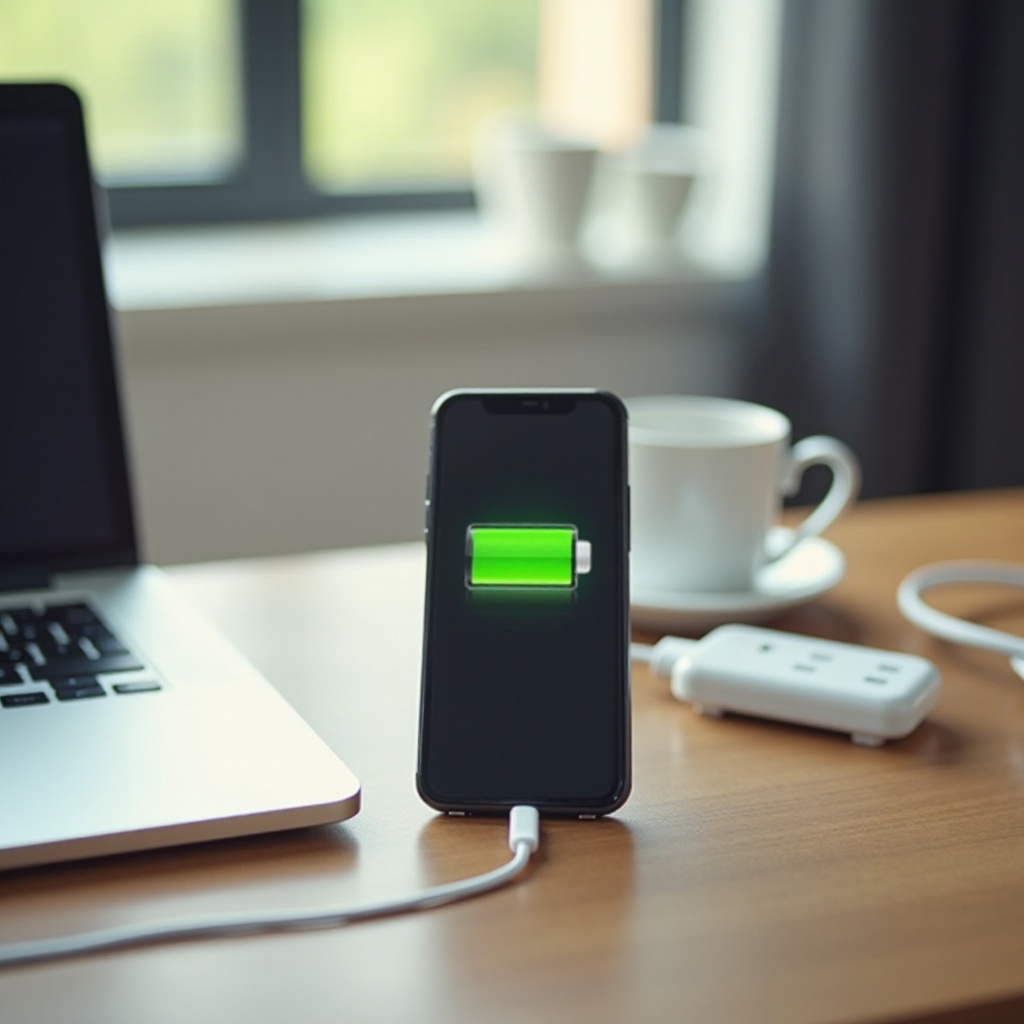
Quick Answer: Your Phone Is Drawing More Power Than the Charger Supplies
We have framed the problem. Now here is the straight answer: your phone is consuming more watts than it receives. Charging adds power to the battery. Using the phone consumes power. If live use plus background activity exceeds what the charger and cable deliver, the battery fills slowly, stalls, or drains.
Common scenes prove it:
– You game or stream video on a low-wattage charger.
– You take a long video call while hotspotting on 5G.
– Your phone runs hot and throttles charging to protect the battery.
– A faulty cable or dirty port reduces current so much that usage outruns input.
The fastest fix pulls two levers. First, cut live power draw by lowering screen demand and pausing heavy tasks. Second, raise charging input by using a higher-watt, standards-compliant charger and a quality cable with a clean, tight port connection.
How Charging Really Works: Watts, Volts, Amps, and the Power Budget
With the quick answer in mind, understanding the power budget lets you solve the root cause. Chargers supply watts. Watts equal volts times amps. Many basic bricks or computer USB ports deliver only 5 to 10 watts. Modern phones can accept much more through USB Power Delivery, PPS, or brand-specific fast-charge protocols.
Your phone negotiates with the charger to set voltage and current. If that negotiation fails because the charger lacks the right standard or the cable cannot carry enough current, charging falls back to a slow mode. At the same time, your phone spends watts on the screen, CPU or GPU, radios like 5G and Wi‑Fi, GPS, Bluetooth, cameras, and background tasks. If spend exceeds supply, the battery provides the difference.
Heat complicates everything. When the battery or main board warms up, the system may limit current or pause charging to prevent damage. That protects the cell but can make the percentage fall if usage stays high. Knowing these basics lets you adjust usage, upgrade charging gear, and keep temperature in check.
Common Reasons Your Battery Drops While Charging
Now that the power budget is clear, you can recognize the usual suspects that cause a plugged-in phone to lose charge:
- Underpowered charger: A 5W brick or a laptop USB port struggles to offset normal use, let alone gaming or video calls.
- Incompatible or slow charging standard: Your device expects USB PD, PPS, or a brand protocol. Without it, fast charge will not engage.
- Weak or damaged cable: Frayed, long, or uncertified cables add resistance and limit current; some only support data or low power.
- Dirty or loose port: Lint, dust, or corrosion blocks solid contact. The phone sees intermittent power or reduced current.
- Heavy foreground use: Games, 4K recording, streaming, and AR spike CPU or GPU and screen power.
- Background drain: Post-update indexing, cloud backup, photo analysis, or a misbehaving app consumes power unseen.
- Radio-intensive tasks: 5G, hotspotting, GPS navigation, and poor signal areas make the modem work harder.
- Heat and throttling: A warm phone slows or pauses charging; wireless charging adds extra heat and loss.
- Wireless charging losses: Coil misalignment and inherent inefficiency reduce net power versus wired charging.
- Car chargers and hubs: Many provide low, unstable output. Some USB-A car ports barely match standby draw.
- Optimized or adaptive charging: Battery protection features may hold the charge rate or stop at a percentage to reduce wear.
- Battery health degradation: Aging batteries have higher internal resistance, heat up faster, and accept charge less efficiently.
- Software bugs or meter inaccuracy: The percentage gauge can drift after updates or rare crashes, misreporting progress.
Each cause maps to a fix. The next section turns these causes into actions that restore a steady climb.
Step-by-Step Troubleshooting Checklist to Reverse Battery Drop While Plugged In
You have seen the likely causes. Work through this practical list from quick checks to deeper steps, and watch the percentage stabilize.
1) Verify the charger
– Read the label. Aim for a wall charger that supports USB PD or PPS with sufficient wattage for your phone class.
– Skip laptop USB ports and low-power hubs for recovery charging; they often top out at 5W.
2) Swap the cable
– Use a short, high-quality, certified cable rated for fast charge. Replace frayed, long, or suspect cables.
3) Clean and inspect the port
– Power off the phone. Use a wooden or plastic pick to gently lift out lint. Do not use metal tools. Check for wobble or damage.
4) Reduce live power draw
– Lower brightness. Set screen to 60 Hz. Close heavy apps. Disable overlays and pause background downloads. Pause games and streaming.
5) Optimize radios
– Switch to Wi‑Fi if signal is weak. Turn off 5G temporarily. Disable hotspot and GPS unless needed. Airplane Mode speeds charging when possible.
6) Cool the phone
– Remove thick cases. Keep it on a hard, cool surface out of the sun. Avoid car dashboards and heat sources.
7) Confirm fast-charge negotiation
– Look for on-screen fast-charge indicators. If absent, test another PD or PPS charger and a known-good cable.
8) Check battery usage
– iPhone: Settings > Battery charts. Android: Settings > Battery > Usage. Stop or uninstall obvious drainers.
9) Reboot and update
– Restart the phone. Update the OS and apps. Bug fixes and reboots can stop runaway background tasks.
10) Calibrate the battery meter
– Charge to 100 percent. Use the phone until it shuts down. Charge back to 100 percent without interruption. Do this sparingly.
11) Test alternate power sources
– Try a different wall outlet, charger, and cable combo. Rule out household or adapter issues.
12) Last-resort resets
– Reset settings without erasing data. If issues persist, back up and factory reset to eliminate software corruption.
If your phone still drains while idle on a known-good fast charger and stays cool, suspect battery health or a hardware fault and move to the service section next.
Platform-Specific Fixes: iPhone and Android Differences
The checklist works for any phone. Still, iPhone and Android handle charging and background tasks differently. After you stabilize the basics, use these platform-specific tweaks.
iPhone
– Check Battery Health: Settings > Battery > Battery Health & Charging. If Maximum Capacity is low or the phone throttles performance, charging may lag.
– Optimize Charging: iOS may delay charging to protect the battery. Disable Optimized Battery Charging temporarily to test.
– Accessory compatibility: Prefer MFi-certified Lightning cables and reputable USB‑C cables and PD chargers for negotiated fast charge.
– Post-update load: Photos, iCloud, and Spotlight indexing can spike drain. Leave the phone plugged in and idle to finish tasks.
– Clean Energy Charging and time-based scheduling may slow charging depending on grid conditions. Test with these off if needed.
Android
– Fast-charge protocols: Many Android phones need USB PD, PPS, or OEM-branded fast chargers to reach full speed. Use the right standard.
– Adaptive Battery and charge limits: Some models cap charge at 80 to 85 percent to extend lifespan. Disable temporarily to diagnose.
– Per-app restrictions: Settings let you limit app background activity. Clamp down on apps that run hot or sync too often.
– Safe Mode: Boot into Safe Mode to rule out third-party app drain. If charging recovers, remove the culprit apps.
– Vendor tools: Some devices offer battery diagnostics and port checkers in settings or support apps.
These differences explain why the same charger can behave differently across devices. Match the right gear and settings to your phone to avoid surprises and keep the next section on heat in mind.
Heat and Charging: Why Temperature Can Make Your Battery Percentage Fall
Having adjusted platform settings, you should watch temperature next because heat magnifies any power imbalance. Lithium-ion cells charge best in a moderate range. When your phone gets hot, the system lowers charging current or pauses to prevent damage. If you keep playing a game or streaming video, the usage continues while the charger backs off, so the percentage drops.
Reduce heat to restore net charging:
– Remove thick or insulated cases while charging.
– Keep the device on a hard, cool surface with airflow.
– Avoid sun, cars, and hot rooms.
– Switch from wireless to wired charging; coils add heat and loss.
– Shorten sessions or enable performance or battery-saver modes.
Cooling complements the earlier steps. When thermals are under control, fast-charge protocols stay engaged and the battery remains comfortable, which sets you up for success in tricky real-world scenarios.
Special Scenarios: Gaming, Video Calls, Wireless, Car Chargers, and After Updates
Temperature, protocols, and power budgets all intersect in specific use cases. If you jump from theory to practice, these are the scenes where charge often falls while plugged in, and how to turn them around:
- Gaming and high refresh rates: 3D rendering, 120 Hz screens, and haptics can consume more than a 5 to 10W charger provides. Use a higher-watt PD or PPS charger, cap refresh to 60 Hz, and lower brightness.
- Video calls and live streaming: Camera, screen, and network radios run together. Plug into a fast wall charger and a solid cable; avoid laptop ports and hubs.
- Wireless charging: Even well-aligned wireless pads lose power to heat. Misalignment makes it worse. Prefer wired when you need speed or when the phone feels warm.
- Car chargers: Built-in USB-A ports often trickle. Use a dedicated, high-watt 12V adapter that supports PD or PPS and a proper cable.
- After updates: Background indexing and cloud sync spike for a day. Let the phone finish while idle on a wall charger. Reboot once and update apps.
Treat these as temporary bottlenecks you can solve with the right charger, cable, settings, and habits. If they persist even with ideal gear and moderate use, move on to hardware checks.
When to Replace the Battery or Service the Charging Port
If the phone still loses charge while idle on a known-good fast charger and stays cool, hardware may be at fault. Signs the battery needs replacement include:
– Maximum capacity well below original, sudden shutdowns, or rapid drops under load.
– Noticeably slow charging even with proper gear and minimal use.
– Swelling or a lifting screen. Stop using the device and seek service immediately.
Also check the port. Intermittent connection, visible damage, excess debris, or a plug that will not seat firmly points to repair. When in doubt, run a manufacturer battery diagnostic or visit an authorized service center. Addressing hardware now prevents more serious issues later.
Safety Notes: What Not to Do While Charging
As you troubleshoot or consider service, keep safety front and center. Avoid fixes that create bigger problems:
– Do not use metal tools in the port; you can short pins or scratch contacts.
– Do not wrap the phone in blankets or put it under pillows while charging.
– Do not use swollen batteries or chargers that smell burnt or feel excessively hot.
– Do not rely on bargain, uncertified chargers or cables.
– Do not cool with ice packs or a freezer; condensation can damage electronics.
Smart charging is safe charging. Use certified accessories, allow airflow, and monitor temperature while you test and retest.
Conclusion
A falling percentage while plugged in usually means demand outpaces supply or heat forces the phone to slow charging. You can flip that equation by cutting live usage, matching your device with a capable PD or PPS charger and quality cable, cleaning the port, and keeping the phone cool. Platform features like optimized charging and per-app restrictions also matter. If the problem persists while idle on a strong charger, consider battery health or port repair. Apply the checklist, confirm fast-charge negotiation, and your phone should climb steadily again.
Frequently Asked Questions
Is it normal for my phone to lose battery while charging during heavy gaming?
Yes. Gaming can exceed a weak charger’s output. Use a higher‑watt PD or PPS charger, lower screen refresh and brightness, and keep the phone cool to maintain net-positive charge.
Can a bad cable or dirty port really cause the percentage to drop?
Absolutely. High resistance or poor contact limits current. Swap in a short, certified cable and gently clean the port to restore power flow and stop intermittent charging.
How do I know if my battery needs replacement vs a software issue?
Test on a strong charger while idle and cool. If it still drains, check battery health stats. Rapid drops, shutdowns, swelling, or slow charging often indicate hardware replacement.