7 Aug 2026
Post by Elowenly
Introduction
Powering up a Verizon router should be quick and predictable. You connect the power, press the switch, and watch the LEDs settle into a steady state. When everything works, your home devices jump online within minutes. When it does not, the cause is usually simple: a loose cable, the wrong port, or a weak outlet. This guide explains how to turn on Verizon router models correctly and avoid those common snags.
You will learn each step in order: where to place the router, how to connect the power supply, and how to handle model differences for G3100, CR1000A, and G1100 units. You will see how to read LED lights during boot, how to connect to your ONT with Ethernet or coax, and how to join Wi‑Fi using the default credentials. You will also get a fast troubleshooting checklist if the router refuses to power up or keeps rebooting. With the basics in mind, start by confirming your model and the parts in your box.
Before You Start: Identify Your Verizon Router Model and What is in the Box
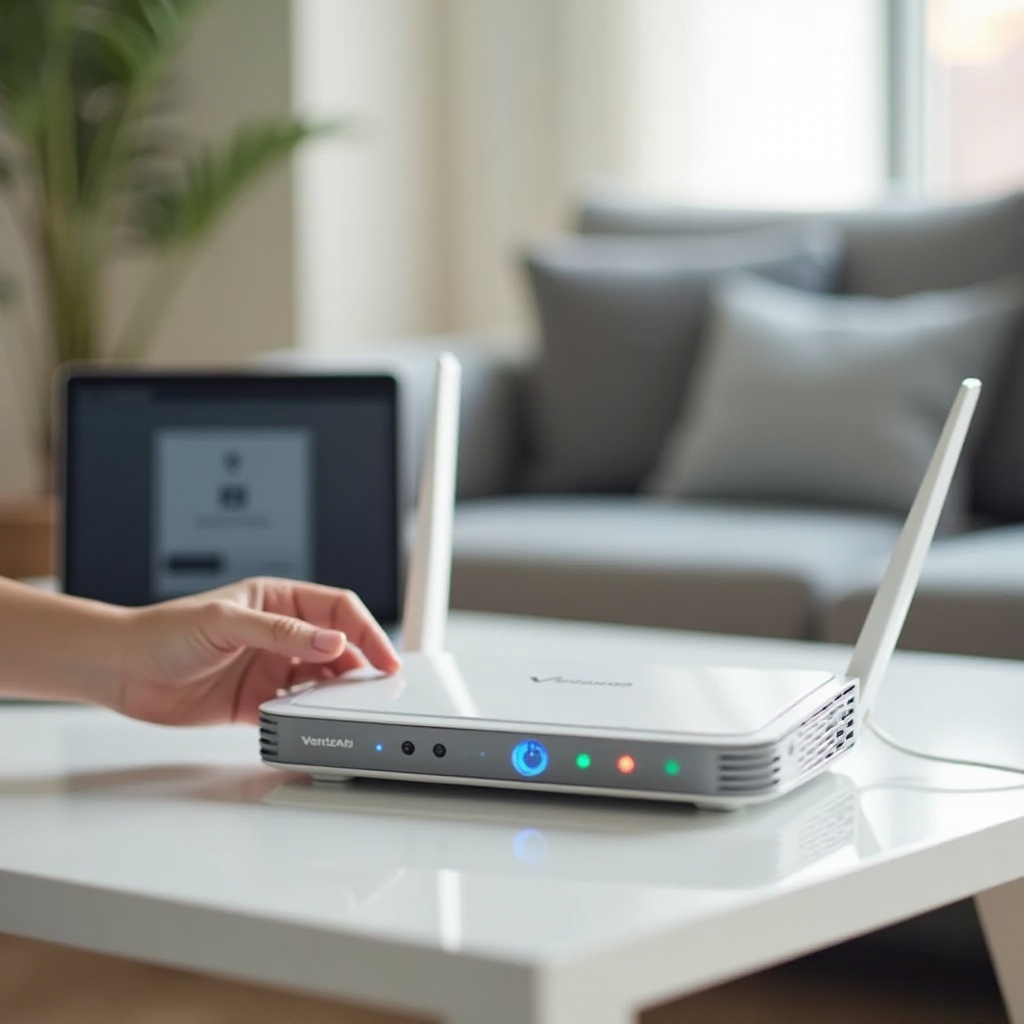
Correct identification prevents setup detours. Look on the label under or behind your router for the model name and exact code. Common names include Fios Home Router G3100, Fios Router CR1000A, and Quantum Gateway G1100. On that same label, note the default Wi‑Fi network names and passwords. You will use them to connect your phone or laptop during the first login.
Next, match the power adapter to the router. Read the voltage and amperage on the adapter label and confirm they match the router label. Do not swap adapters between different electronics unless Verizon lists them as compatible. Check the adapter cable for damage, frays, or loose tips. A wobbly barrel connector can interrupt power and cause random restarts.
Confirm your WAN link type before you begin. Most recent Fios installs use Ethernet from the ONT to the router. Some setups still use coax with MoCA. Have the right cable ready and in good condition. If you plan to activate or run diagnostics with the My Verizon app, install it and sign in on your phone now. With your model and parts set, choose an ideal location that helps the router start cleanly and deliver strong signal.
Place Your Router for Cooling, Safety, and Signal Coverage
Good placement prevents overheating and improves stability. Set the router on a flat, open surface with the vents clear on all sides. Avoid enclosed cabinets and tight bookshelves that trap heat. Keep it off the floor and away from radiators, windows with direct sun, and other heat sources. Leave a few inches of clearance around the chassis so the fanless design can dissipate heat.
For coverage, a central spot often works best if wiring allows. Stay clear of thick masonry walls, large mirrors, aquariums, and metal appliances that can weaken Wi‑Fi. Use a short, untangled power lead and WAN cable to avoid pull on the ports. If you must place the router in a low‑ventilation area for wiring reasons, consider a small stand or extra spacing to increase airflow. Once the router sits in a safe, open space, you can connect power and turn it on according to your specific model.
Powering On Your Verizon Router by Model
Verizon routers share the same core steps: plug in the adapter, connect to a stable outlet, and press the power button if present. The locations of the power port and switch, and the LED behavior, differ by model. Use the directions for your device, then wait for the LED pattern to indicate the boot is complete before you continue.
Fios Home Router G3100: Power Port, Power Button, and Startup Steps
Follow this sequence:
1) Plug the power adapter into a tested wall outlet. Avoid switched outlets and dimmers that can cut power.
2) Insert the round barrel plug into the rear power port on the G3100 until it feels secure.
3) Flip the rear rocker switch to On. You should feel a distinct click.
4) Watch the LED ring on the front. It will blink during startup and change as services come online.
5) Do not wiggle cables or move the unit while it boots. Let it complete the sequence.
Practical tips:
– If you suspect a bad surge protector or smart plug, connect directly to the wall outlet for testing.
– Keep the unit upright for better cooling and to reduce dust intake.
Fios Router CR1000A: Powering On and Port Overview
Bring the CR1000A online as follows:
1) Connect the power adapter to a reliable wall outlet or a known good surge protector.
2) Insert the adapter tip into the power jack on the CR1000A until it seats firmly.
3) Press the power button if your unit has one. Some units start when you apply power.
4) The front LED bar will light and may pulse while the router initializes.
5) Wait until the LED shows the stable ready color before touching cables or logging in.
Port notes:
– Use the WAN port for the ONT Ethernet cable. It usually sits apart from LAN ports and may be color‑coded.
– Gently press Ethernet connectors until you hear a click. Do not force the latch.
Quantum Gateway G1100 and Other Verizon Routers: Power-On Basics
Power up the G1100 and similar models like this:
1) Plug the adapter into a known working outlet. Bypass power strips during troubleshooting.
2) Insert the adapter tip firmly into the router power port.
3) Press the power button if present. Some units power on as soon as they receive power.
4) Watch the front panel LEDs as they cycle through the boot process.
5) Wait until the Internet or WAN light goes solid to indicate the router is online.
Notes for Extenders E3200 and CR1000AX After the Main Router Is On
- Always power and stabilize the main router first. Extenders need a live signal.
- Place the extender about halfway between the router and the low‑signal area.
- Power on the extender and wait for its LED to indicate pairing mode.
- Use WPS or the app to add the extender only after the main router LED shows online.
Once you have power and a stable LED pattern, the lights themselves can tell you where the router stands in its boot sequence and whether the WAN link is healthy. Read them before moving on to ONT connections.
Understand the LED Boot Sequence and Normal Startup Timeline
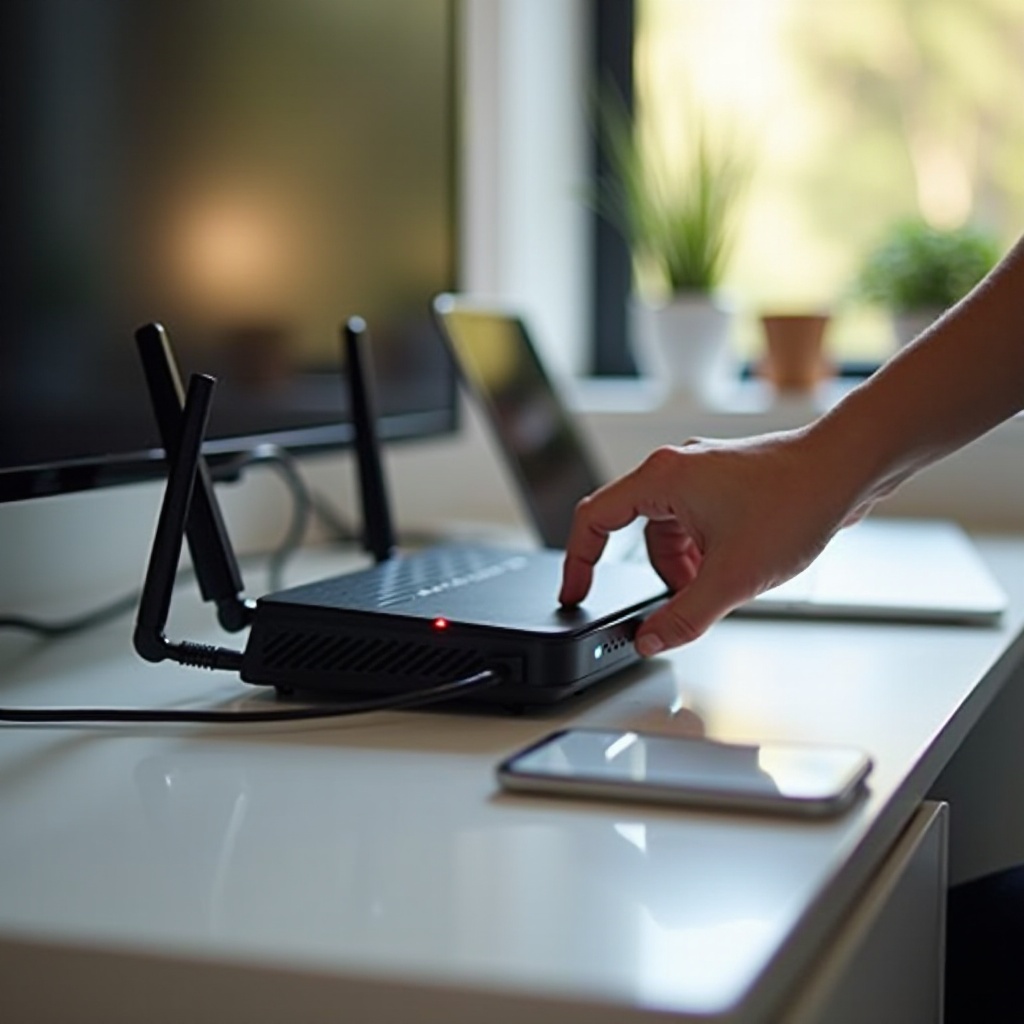
LEDs give you quick feedback with no tools. In most cases, a Verizon router will go from power on to stable online in two to five minutes. Lights blink during checks and turn solid when services are ready. If they show fault colors or keep cycling for more than ten minutes, recheck power and cabling.
G3100 LED Meanings From Power-On to Online
- Blinking white: The router is starting up and loading services.
- Solid white: The router is online and broadcasting Wi‑Fi.
- Blue, pulsing or solid: WPS pairing is active or has completed.
- Yellow or amber: The WAN link is weak or not established. Inspect ONT and cables.
- Red: A critical error or overheating. Power cycle the unit and confirm ventilation.
CR1000A LED Indicators and What Each Color Means
- Pulsing white: The router is booting. Do not change cables.
- Solid white: Online and ready to use.
- Blue: WPS activity. If you did not start pairing, wait for it to time out.
- Amber or yellow: WAN link or configuration issue. Verify the ONT connection.
- Red: Fault state. Try a reboot, then check the adapter and outlet.
G1100 Lights During Boot and When It Is Ready
- Power light solid: The router is powered on.
- Internet or WAN light solid: The router has a live connection to the ONT.
- Wi‑Fi lights on: Wireless radios are active and broadcasting.
- Blinking or red indicators: Check power, WAN port, and provisioning.
When the LEDs show the router is ready but the internet light remains amber or off, the ONT link may be miswired or deprovisioned. Confirm the correct cable type and port before you proceed to Wi‑Fi setup.
Connect to the ONT Correctly (Ethernet vs. Coax or MoCA)
A clean, correct link to the ONT determines whether the router can request an IP address and route traffic. Most current installations use Ethernet from the ONT to the router. Some legacy or specific layouts still use coax with MoCA. Wire it correctly and secure the connectors to prevent intermittent drops.
Ethernet ONT: WAN Port Connection and Tips
Follow these steps for Ethernet WAN:
1) Run a Cat5e or Cat6 cable from the ONT Ethernet port to the router WAN port.
2) Press each end until it clicks, then tug gently to confirm it locks.
3) If you are switching from coax to Ethernet, contact support to enable the ONT Ethernet port.
4) Keep the cable away from power bricks and AC cords to reduce interference.
5) If the router does not pull an IP after wiring, reboot the ONT, then reboot the router in that order.
Coax or MoCA: When and How It Is Used
If your setup uses coax as the WAN path:
1) Connect the coax from the wall jack that runs to the ONT into the router coax port.
2) Hand‑tighten the connector. Do not overtighten, which can damage the port.
3) Use splitters rated for MoCA if you must split the line for TV equipment.
4) If throughput is low or the LED reports a WAN problem, ask Verizon about moving to Ethernet.
Once the WAN link is active and the LEDs stabilize, you can join the network. Start with the default Wi‑Fi name and password, then consider quick changes to tighten security.
Join the Network: Default Wi‑Fi or Ethernet and Basic Activation
You can connect wirelessly using the default SSID and password, or plug a device into a LAN port for a wired start. Both methods let you reach the router interface, verify the WAN status, and run basic tests.
Find the Default SSID and Password on the Label
- Look on the router label for Network Name or SSID and the Wi‑Fi password.
- On your phone or laptop, open Wi‑Fi settings and select the listed SSID.
- Enter the password exactly as printed. Pay attention to case and special characters.
- For a wired start, plug a computer into any LAN port with an Ethernet cable.
Use the My Verizon App for Quick Activation and Health Check
- Open the app and sign in with your Verizon account.
- Follow prompts to activate the router if your service requires it.
- Run a network health check and a speed test to confirm everything works.
- If the app cannot find the router, verify the LEDs and check the ONT link again.
Change SSID and Password and Enable WPA3 for Security
- Log in to the router interface or use the app to change the SSID to a unique name.
- Set a strong Wi‑Fi password with at least 12 characters and a mix of types.
- Enable WPA3 if your devices support it. Keep WPA2 on for older devices if needed.
- Save changes, then reconnect devices to the updated network name.
If the router refuses to power on, or it powers but never completes boot, work through a simple checklist to isolate outlets, adapters, cables, and firmware locks.
If Your Verizon Router Will Not Turn On: Quick Fixes Checklist
Start with the power source. Many no‑light issues trace back to dead outlets or switches.
-
Test the outlet:
1) Plug in a lamp or phone charger to confirm the outlet is live.
2) If the outlet is on a GFCI circuit, press Reset on the GFCI receptacle.
3) Check wall switches that may control that outlet. -
Verify the power adapter:
1) Confirm the adapter voltage and amperage match the router label.
2) Inspect the cable for cuts, kinks, or a loose barrel tip.
3) Try a different known good outlet. Avoid extension cords during tests. -
Bypass intermediaries:
1) Remove surge protectors, smart plugs, and UPS units for testing.
2) Plug directly into the wall to rule out those devices. -
Perform a controlled power cycle:
1) Unplug the adapter from the wall and the router.
2) Wait 60 seconds to discharge capacitors.
3) Reconnect the wall side first, then the router side, and press the power button. -
Consider a factory reset if it powers but will not boot:
1) Use a paperclip to press the Reset pinhole for about 10 to 15 seconds until LEDs change.
2) Remember that a reset wipes custom SSID, passwords, and settings. Reconfigure after reboot. -
Watch for signs of hardware failure:
1) No LEDs with a verified good outlet and matching adapter.
2) A burning smell, rattling inside the case, or a loose power jack.
3) Contact Verizon to request a replacement or schedule service.
After the router powers normally again, use the right action for future issues: a quick reboot for short glitches, a full reset for deep configuration problems, and a controlled power off before moving cables.
Reboot vs. Factory Reset vs. Power Off: What Each Does and When to Use Them
-
Reboot clears temporary faults. Unplug the router for 10 to 15 seconds and plug it back in, or use the power button if available. Try this first when speeds drop, Wi‑Fi stalls, or the LED pattern looks stuck.
-
Factory reset returns the router to defaults. Press and hold the Reset pinhole for about 10 to 15 seconds until the LEDs change. Use this for persistent software problems, forgotten passwords, or after major firmware issues. After a reset, join the default SSID again and redo your settings.
-
Power off safely when moving equipment, swapping cables, or changing rooms. Use the power button to shut down if the model includes one. If not, unplug the adapter from the wall, then the router side. Power back on only after cables sit correctly.
If your connection issues began after a neighborhood outage or a tripped breaker, a clean, ordered startup helps the router and ONT reestablish a fresh session without conflict.
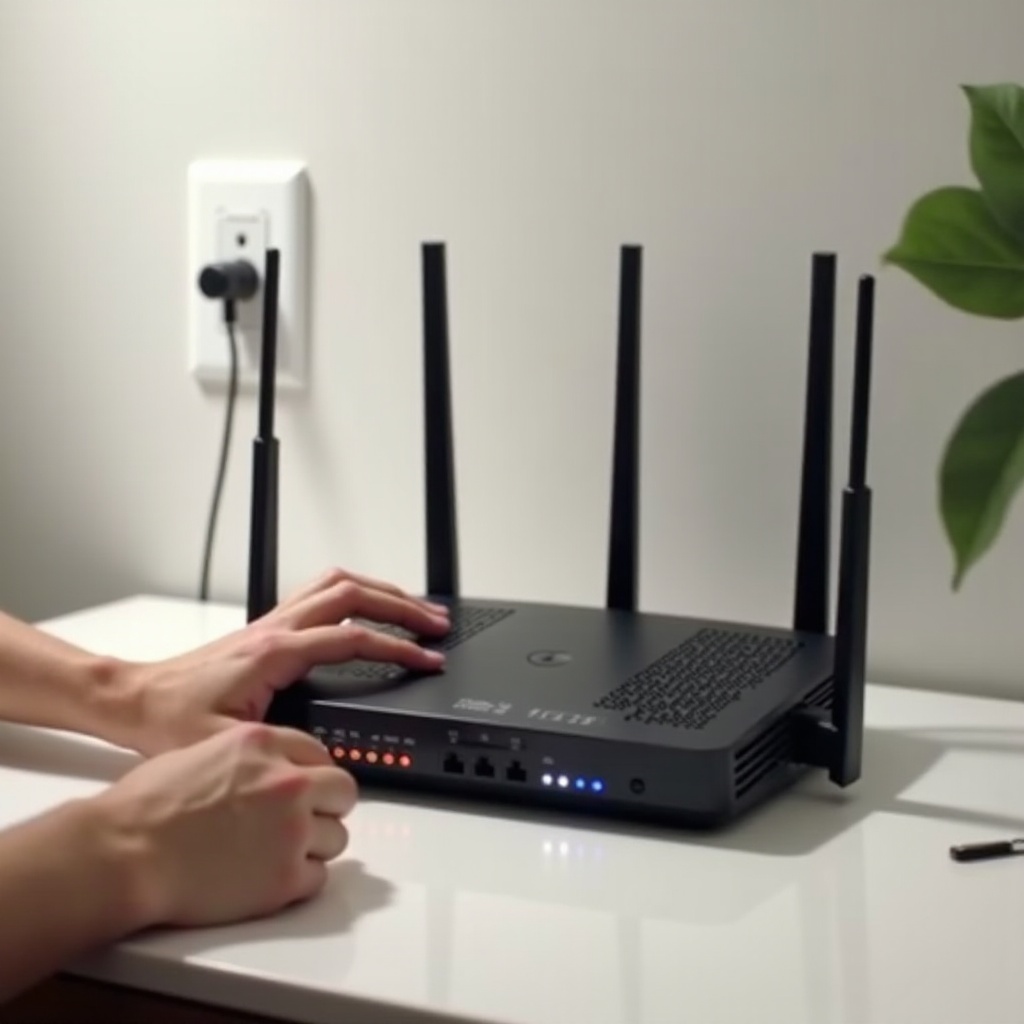
After a Power Outage: Safe Startup Order and Recovery Tips
Follow a simple sequence to avoid DHCP conflicts and link errors:
1) Check the ONT first. If it has a power adapter or a battery backup, confirm lights are on. If dark, plug it into a working outlet and wait two minutes.
2) Power on the router next. Wait for a stable online LED.
3) After the router settles, power on set‑top boxes, VoIP adapters, and Wi‑Fi extenders.
If the router internet light never stabilizes:
– Reboot the ONT by disconnecting power for 30 seconds. Wait for it to finish its own boot.
– Reboot the router after the ONT shows normal lights.
– Use the My Verizon app to check for a service outage before you reset anything.
For resilience, consider a small UPS for both the ONT and router. A properly sized unit can ride through short brownouts and give you time to shut down cleanly during longer outages.
When to Contact Verizon for a Replacement or Technician Visit
It is time to involve support when power checks and resets do not resolve the issue. Contact Verizon if the router shows no LEDs with a verified outlet and matching adapter, or if it boots but the LEDs report persistent faults even after clean reboots and a factory reset. Report any physical defects you see, such as a damaged power jack or a warped, overheated adapter.
Have this information ready to speed up resolution:
– Router model and serial number from the rear label.
– A summary of steps you tried, including outlet tests, adapter checks, and resets.
– Photos of cable connections if support requests them.
If the device is defective, ask for a replacement shipment or a technician appointment. If your ONT or in‑home wiring appears to be the root cause, a site visit may be the fastest path back online.
Conclusion
You now have a clear process for how to turn on Verizon router hardware and bring it online quickly. You verified your model and power adapter, placed the router for airflow, then powered it up with the correct steps for G3100, CR1000A, or G1100 models. You learned how to read LEDs during boot, how to wire the ONT with Ethernet or coax, and how to join the network with default credentials before tightening security. You also have a concise checklist for situations where the router will not power on or keeps looping.
Keep this sequence handy for outages and upgrades. Start with clean power, stable wiring, and patient start times. Use reboots for quick fixes, resets for deep errors, and call support when hardware fails. With these steps, you can power on, connect, and stay online with confidence, reducing downtime and frustration across your home.
Frequently Asked Questions
Where is the power button on Verizon Fios routers?
Most Fios routers place the power button on the back near the power port. On the G3100, flip the rear rocker switch. Some CR1000A units power up as soon as you plug them in.
How long should a Verizon router take to turn on and get online?
Expect two to five minutes for most models. LEDs will blink during boot and turn solid when ready. If the internet light is not stable after 10 minutes, check the ONT link and reboot both devices.
Can I turn on and set up my Verizon router without the My Verizon app?
Yes. Power on the router, join the default SSID, and log in to the router interface using the label credentials. You can change Wi‑Fi settings and confirm WAN status without the app.