
11 Oct 2026
Post by Elowenly
Introduction
You tap a thumbnail, and your iPhone throws the message cannot load photo. The image stays blurry or blank. This usually means the phone cannot fetch the full resolution file from iCloud right now. It can also signal storage limits, data restrictions, or a temporary Apple outage.
You can fix it with a few targeted steps. Start with simple checks to refresh the network and the Photos app. Then remove data caps, free up space, and make sure iCloud is syncing. If the problem persists, update your system, review privacy tools like VPN and Private Relay, and try safe resets that do not erase your content. This guide walks you through everything in a logical order, with quick wins first and deeper solutions next.
As you move from one section to the next, you will see how each change narrows the cause. Once you clear the immediate error, you will also learn how to prevent it from coming back.
What ‘Cannot Load Photo’ Means on iPhone
When iCloud Photos runs with Optimize iPhone Storage, your device keeps small thumbnails locally and pulls the original from iCloud when you open a picture. The error appears when that on demand download fails. It can also show on devices set to download originals if the link to iCloud or local storage is stuck.
Common triggers include:
– Weak or unstable internet.
– Low Data Mode or app data restrictions.
– Low Power Mode pausing background activity.
– Not enough free storage on the iPhone for the original.
– Not enough iCloud storage to sync.
– Apple service outages or account authentication glitches.
– VPN, Private Relay, or custom DNS blocking traffic.
– iCloud Photos disabled or a mismatched Apple ID.
The upside is that most causes are simple. Fix the connection and lift limits, ensure space, and re authenticate your account. The next section delivers quick checks that often fix the problem in minutes and guide you toward the right path if they do not.
Quick Checks Before You Dive In
Start with these rapid actions. They often clear a stuck request without heavy changes and help you decide whether the issue is network, app, or account related.
Toggle Airplane Mode, Wi Fi, and Cellular Data
- Open Control Center.
- Turn on Airplane Mode for 10 seconds, then turn it off.
- Turn Wi Fi off, pause, then turn it back on.
- If you use cellular, toggle Mobile Data off and on.
This forces fresh network handshakes and often clears transient errors.
Force Quit the Photos App and Reopen
- Swipe up from the bottom and hold to open App Switcher.
- Swipe up on Photos to close it.
- Reopen Photos and try the image again.
A forced relaunch stops a stalled download and resets the request pipeline.
Try a Different Network
- Switch to a 5 GHz Wi Fi network for speed and stability.
- If Wi Fi is slow, turn it off and try cellular data.
- If you use cellular, try a stable Wi Fi instead.
If the photo loads on a different network, you have a connectivity or router policy issue to fix next.
Confirm Apple Services and Account Status
Before adjusting deeper settings, check that Apple services and your sign in are working. If iCloud Photos or account sign in is down, no local troubleshooting will help until Apple resolves the issue.
Check Apple’s System Status for iCloud and Photos
- Visit Apple’s System Status page in a browser.
- Review iCloud Photos, iCloud Account and Sign In, and Photos.
- If there is an outage or maintenance, wait and try later.
Service disruptions can cause widespread errors that mirror local problems.
Verify Apple ID, iCloud Photos, and Your Device
- Go to Settings > Your Name.
- Confirm the correct Apple ID is signed in.
- Settings > Your Name > iCloud > Photos: make sure Sync this iPhone is on.
- If you have several devices, confirm iCloud Photos is enabled consistently.
A mismatched account or a disabled sync switch blocks downloads.
Set Date and Time to Automatic
- Settings > General > Date and Time.
- Turn on Set Automatically.
Correct time and region help validate secure connections with Apple. Now that you know Apple’s services and your account look good, remove data limits and improve your link so originals can download without friction.

Fix Connectivity and Data Restrictions
iCloud Photos depends on a clean, fast connection. Low Data Mode, captive portals, or congested Wi Fi can halt downloads. Lift caps and aim for a strong signal.
Disable Low Data Mode on Wi Fi and Cellular
- Wi Fi: Settings > Wi Fi > tap the info button next to your network > turn off Low Data Mode.
- Cellular: Settings > Cellular > Cellular Data Options > Data Mode > choose Standard or Allow More Data on 5G.
Low Data Mode suppresses background tasks and can delay or block photo downloads.
Allow Photos to Use Cellular Data
- Settings > Cellular > scroll to Photos and enable data.
- Settings > Photos > Cellular Data: enable Cellular Data and, if available, Unlimited Updates.
If you need an image on the go, let Photos use mobile data to fetch it.
Switch Wi Fi Bands or Test Ethernet
- Prefer 5 GHz over 2.4 GHz for better throughput.
- Move closer to the router to reduce interference.
- If your iPhone has USB C, test a USB C to Ethernet adapter for a wired connection.
Stable bandwidth helps large HEIF, ProRAW, and HDR or 4K videos download reliably.
Sign In to Captive Portals and Avoid Throttled Networks
- Hotel, campus, or cafe Wi Fi may require a web sign in. Open Safari and visit a site to trigger it.
- Avoid guest networks that block iCloud domains or throttle large downloads.
- If your router uses parental controls or firewalls, temporarily loosen rules or test another network.
With network limits removed, confirm that power saving settings are not throttling the Photos app in the background.
Tame Power, Performance, and Background Activity
Power saving settings keep your battery alive, but they can slow or pause Photos tasks. Relax them while you fetch originals, then turn them back on if you prefer.
Turn Off Low Power Mode
- Settings > Battery > turn off Low Power Mode.
This mode cuts background network activity. Disabling it allows faster transfers.
Enable Background App Refresh for Photos
- Settings > General > Background App Refresh.
- Turn it on globally or at least for Photos.
This lets the app complete downloads while you switch apps or lock the screen.
Connect to Power and Lock the Screen
- Plug into a charger and connect to Wi Fi.
- Lock the screen and leave the phone idle for several minutes.
iCloud Photos often processes and syncs faster while charging and idle. If power is not the culprit, storage constraints are the next common cause.
Free Up Local and iCloud Storage
If your iPhone or iCloud is full, the device cannot save the original and sync stalls. Free space on the device and in your iCloud account to clear the path.
Clear iPhone Storage for Originals
- Settings > General > iPhone Storage: review the list.
- Offload unused apps you can reinstall later.
- Remove large videos you already backed up.
- In Photos, delete obvious duplicates and clutter, then empty Recently Deleted.
Aim for at least 2 to 5 GB free. Large videos may need even more space for temporary processing.
Manage iCloud Storage
- Settings > Your Name > iCloud > Manage Account Storage.
- Review and delete old device backups you no longer need.
- In Messages in iCloud, remove large attachments and conversations you do not need.
- Check Mail storage and clear large attachments.
If you often hit your limit, consider an iCloud upgrade to maintain headroom.
Empty Recently Deleted in Photos and Files
- Photos > Albums > Recently Deleted > Select > Delete All.
- Files app > Browse > Recently Deleted > Select > Delete All.
Items remain recoverable for a period unless you empty these folders; they still consume space until then. With storage under control, choose the iCloud Photos mode that best suits your needs.
Choose the Right iCloud Photos Setting: Optimize vs Download Originals
Your library mode changes how and when downloads occur. Pick the setting that balances space and reliability for your use.
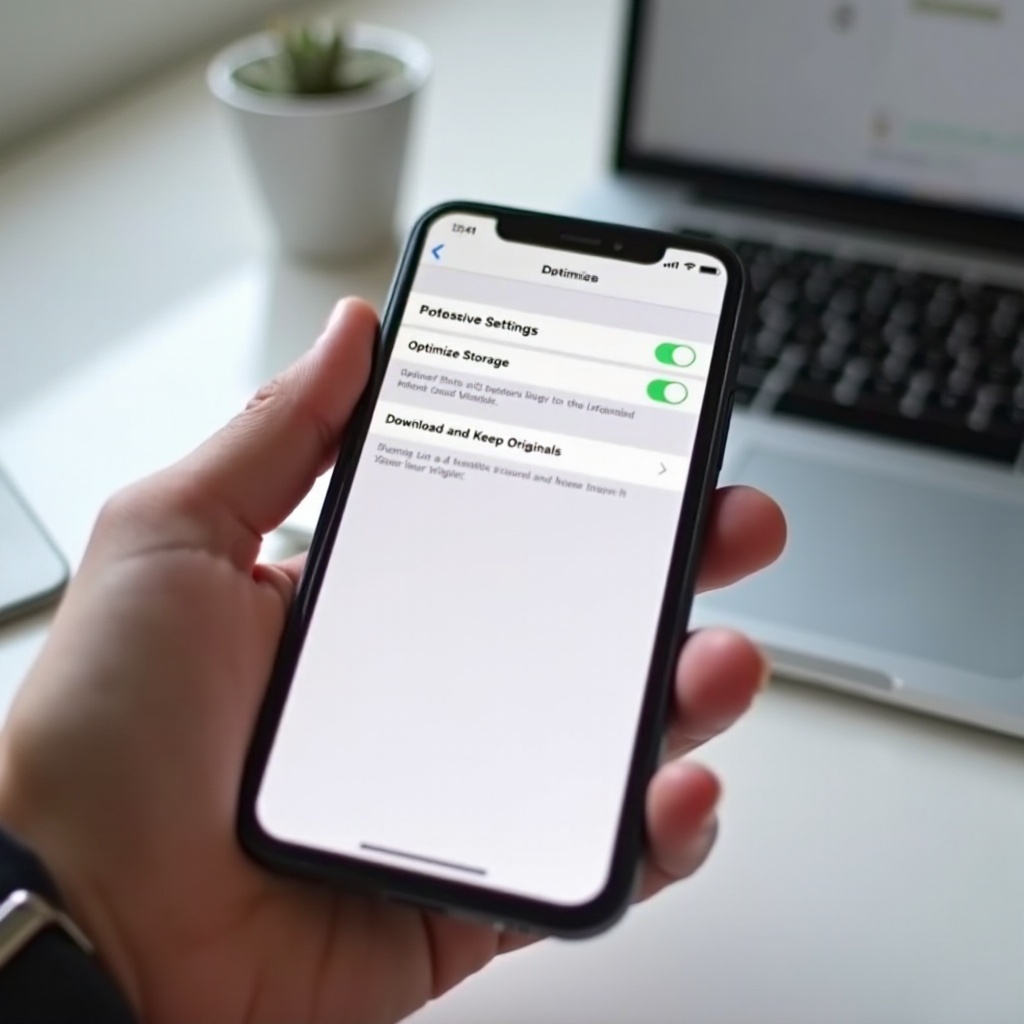
Optimize iPhone Storage
- Settings > Photos > Optimize iPhone Storage.
This mode stores smaller versions locally and downloads originals on demand. It suits devices with limited space but depends on a consistent network, which can surface the error when bandwidth drops.
Download and Keep Originals
- Settings > Photos > Download and Keep Originals.
This mode stores full resolution copies on the iPhone. It reduces on demand fetches and helps when you need offline access. You need enough local space to hold your library.
When and How to Switch Temporarily
- If you hit repeated errors, switch to Download and Keep Originals while on fast Wi Fi and power, let the library sync, then switch back to Optimize if space is tight.
- Prioritize critical albums first, then the rest.
Once you set the right mode, you can force a stuck item to download again.
Force the Photo to Redownload
If a thumbnail refuses to load, nudge Photos to request the original by performing actions that require the full file.
Favorite, Edit, or Duplicate the Item
- Tap the heart to mark as Favorite, then open it.
- Tap Edit, make a small change, then tap Done.
- Tap the three dots, choose Duplicate, and open the copy.
These actions often trigger the system to fetch the original again.
Share to Files or Another App
- Tap Share and choose Save to Files, then select On My iPhone or iCloud Drive.
- Or share to a messaging app or AirDrop to a device you control.
Export operations request the original before they proceed and can break the stalemate.
Use iCloud dot com or Files as a Workaround
- Visit iCloud dot com, open Photos, and download the item to a Mac or PC.
- Alternatively, check the Files app if you export originals to iCloud Drive and download from there.
You can move the file back to your iPhone if needed. If items still stall, refresh the system and the iCloud link.
Update, Restart, and Resync iCloud Photos
Updates and restarts fix hidden bugs and network issues. A brief resync can rebuild the iCloud connection.
Update iOS and Carrier Settings
- Settings > General > Software Update: install the latest iOS.
- Settings > General > About: apply any carrier settings update.
These updates improve network reliability and Photos behavior.
Restart or Force Restart Your iPhone
- Standard restart: Settings > General > Shut Down, then power on.
- Force restart: quickly press volume up, then volume down, then hold the side button until the Apple logo appears.
A fresh boot clears caches and stuck processes that can block downloads.
Toggle iCloud Photos Off and On Safely
- Settings > Photos > turn off Sync this iPhone.
- Choose to keep items on your iPhone if prompted.
- Wait a minute, then turn Sync this iPhone back on.
This quick re handshake often restores normal download behavior.
Sign Out and Back In to Apple ID
- Settings > Your Name > Sign Out. Keep a copy of data on your device when asked.
- Restart the iPhone, then sign in again.
Only do this if other fixes fail. Make sure you have a backup. If the issue persists after a resync, privacy tools and DNS settings may be interfering.
Network Interference: VPN, iCloud Private Relay, and DNS
Security layers and custom DNS can slow or break iCloud requests. Test without them to isolate the cause.
Disable VPN Temporarily
- Open your VPN app or Settings > VPN.
- Disconnect and test the photo download.
Some VPNs throttle large files or block Apple domains to enforce policies.
Pause iCloud Private Relay
- Settings > Your Name > iCloud > Private Relay: turn it off temporarily.
- Test the photo download, then turn it back on afterward.
Private Relay routes requests through relays that may conflict with restrictive networks.
Revert Custom DNS and Proxies
- Settings > Wi Fi > info button > Configure DNS > set to Automatic.
- Remove manual proxy settings if present.
- Disable DNS profiles set by security or content filtering apps, then test.
If interference is not the cause, proceed to safe resets that can clear deeper configuration issues.
Advanced Resets and Last Resorts
These resets do not erase your photos, but they do reset preferences. Try them after the previous steps fail and after you have a backup.
Reset Network Settings
- Settings > General > Transfer or Reset iPhone > Reset > Reset Network Settings.
This clears saved Wi Fi networks and passwords, VPN or APN settings, and cellular options. Rejoin Wi Fi and test again.
Reset All Settings
- Settings > General > Transfer or Reset iPhone > Reset > Reset All Settings.
This resets system preferences like location, privacy, Home Screen layout, and more, but keeps your data. It can clear hidden conflicts that block downloads.
When to Contact Apple Support or Visit a Genius Bar
- If multiple devices on your Apple ID show the same error.
- If photos are missing or stuck on iCloud dot com.
- If storage or sync counters look wrong for days.
Document the steps you tried. Contact Apple through the Support app or book a Genius Bar appointment. They can check your library on Apple servers and repair account side issues.
Special Cases and Workarounds
Some media types and sharing methods behave differently. If common steps do not explain the issue, consider these scenarios.
Shared Albums and Collaboration Access
- Confirm the album appears under Albums > Shared.
- Ask the owner to verify you still have access.
- Shared albums often store optimized copies rather than full originals.
If you need a full resolution file, ask the owner to share the original directly via AirDrop, a link, or cloud storage.
Live Photos, ProRAW, and Large HDR or 4K Video
- Live Photos and high dynamic range or 4K videos are larger and need more time and bandwidth.
- ProRAW files are much bigger than standard HEIF or JPEG.
- If a single asset never loads, download it from iCloud dot com or a Mac and AirDrop it to your iPhone.
Ensure your device has extra free space before you open very large media.
Photos from Third Party Cloud Apps
- If the image came from Google Drive, Dropbox, or OneDrive, open that app and confirm the file is fully cached.
- In the Files app, tap the cloud icon to fetch originals from third party locations.
- Export the item to Photos once it is local.
Third party caches can look like thumbnails until the file finishes downloading.
Prevention Tips to Avoid Future ‘Cannot Load Photo’ Errors
A few simple habits keep your photos available at a tap and reduce on demand fetch issues.
Storage Hygiene and Regular Offloads
- Keep at least 5 to 10 GB free for system tasks and media downloads.
- Review iPhone Storage monthly. Offload unused apps and archive large videos.
- Move long 4K videos or big ProRAW shoots to a Mac, external drive, or cloud archive.
Connectivity Best Practices
- Use a dual band router and name 2.4 GHz and 5 GHz networks differently; prefer 5 GHz.
- Avoid crowded public Wi Fi for big downloads. Use cellular or wait for reliable Wi Fi.
- Leave Low Data Mode off unless you must conserve bandwidth.
Backup Strategies for Peace of Mind
- Keep iCloud Photos on for seamless sync across devices.
- Also keep a local backup on a Mac or PC using Photos or Image Capture.
- For extra redundancy, maintain a secondary cloud archive of your best shots.
With strong storage habits, solid connectivity, and backup redundancy, you reduce the chance of running into the error again and keep your library accessible.
Conclusion
The cannot load photo alert feels alarming, but the cause is usually straightforward. Fix the network, lift data and power limits, and free up space. Confirm Apple’s service status and your account sign in. Most users clear the error with one or two changes. If it persists, update iOS, restart the device, and refresh iCloud Photos. Disable VPN or Private Relay if they interfere. As a last step, use safe resets that do not erase your content.
Build habits that keep the problem from coming back. Maintain enough free storage, prefer clean fast Wi Fi, and allow Photos to use data when you need quick access. Keep reliable backups so you always have a copy. With these steps, your iPhone will fetch originals on demand and keep your photo library at your fingertips.
Frequently Asked Questions
Why does my iPhone say ‘Cannot Load Photo’ even with good Wi Fi?
The link may be strong but restricted. Low Data Mode can block background downloads. Your router or DNS may interfere. VPNs and Private Relay can slow or break iCloud. Storage limits also cause failures because your iPhone needs local space and your iCloud account needs quota. Try this: turn off Low Data Mode, disable VPN or Private Relay, switch from 2.4 GHz to 5 GHz or test cellular, free 2 to 5 GB of iPhone storage, and check Apple System Status and your Apple ID sign in.
Will turning off iCloud Photos delete my pictures from my iPhone?
Not if you choose the keep a copy option. When you turn off Sync this iPhone in Settings > Photos, iOS asks whether to keep items on your device. Choose to keep a copy for local access. Turning off iCloud Photos stops cross device sync, so edits and new shots will not update across devices until you turn it back on. Always keep a backup before you make major changes.
How do I stop the ‘Cannot Load Photo’ message from returning?
Keep your network and storage healthy. Maintain 5 to 10 GB free on your iPhone and upgrade iCloud if you hit quota often. Prefer 5 GHz Wi Fi at home and avoid congested public Wi Fi for large downloads. Leave Low Data Mode off unless needed. Allow Photos to use cellular data when you need quick access. Update iOS regularly. For critical trips or shoots, switch to Download and Keep Originals on fast Wi Fi to cache your library, then switch back to Optimize if space is tight.