
30 Dec 2025
Post by Elowenly
Introduction
Printer spooling plays a critical role in managing print jobs efficiently. Users often expect swift and hassle-free results when sending documents to print. Understanding the concept of spooling in printers can significantly enhance your printing process. This guide aims to provide clarity on its workings, benefits, and solutions to common issues, ensuring you can manage your print environment more effectively.

What is Printer Spooling?
Printer spooling is a method that organizes print jobs by storing them in a queue before processing them one by one. This queue allows multiple print jobs to line up and be accessed sequentially, preventing simultaneous requests from overwhelming the printer. The spooling process plays a crucial role in maintaining an orderly communication flow between the computer and the printer.
Historically, spooling was developed to handle increased print volumes and demands, improving the way print jobs are handled. Understanding this concept helps you recognize the systematic interaction between your computer and printer.
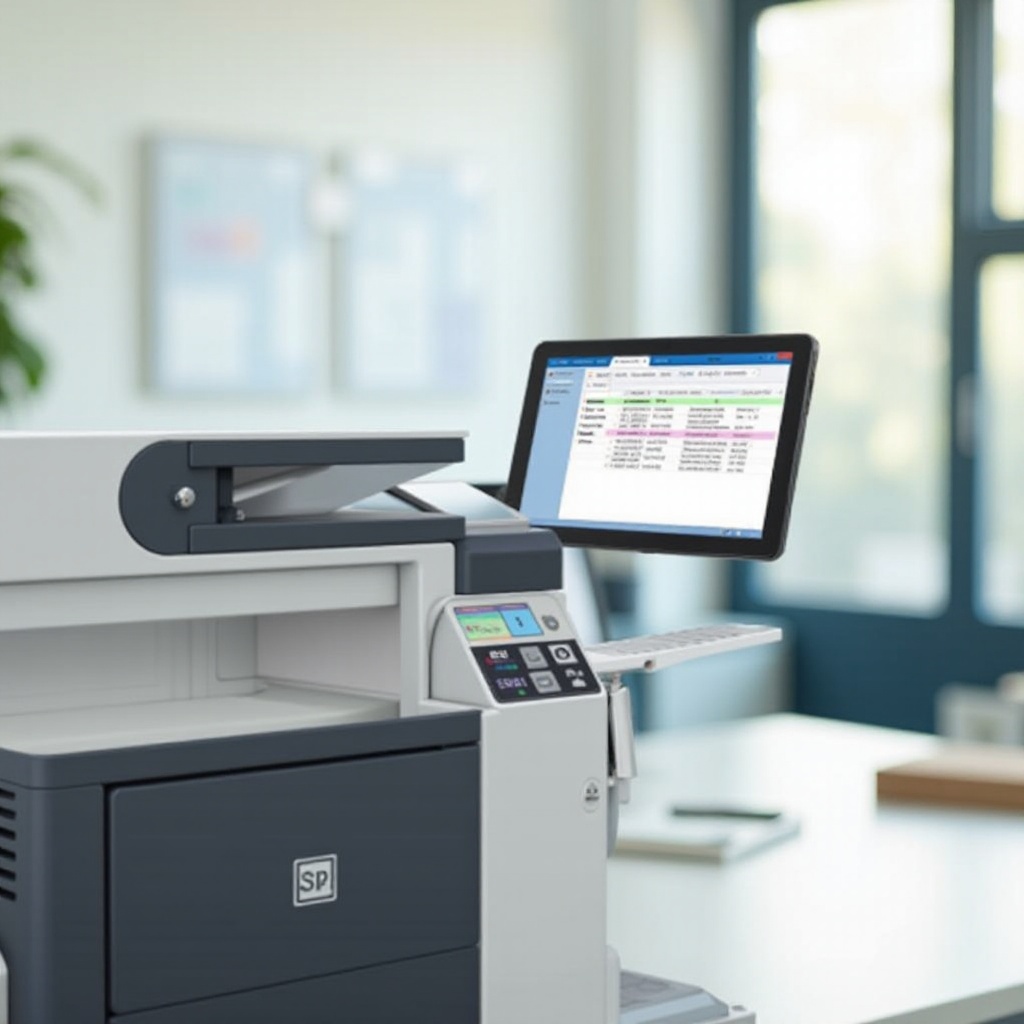
How Printer Spooling Works
Technical Explanation of the Spooling Process
Printer spooling involves creating a buffer—a temporary storage location for print jobs. This buffer manages jobs awaiting processing by the printer. Computers send print data to this buffer, holding it temporarily until the printer is ready. The printer then retrieves and processes jobs sequentially, ensuring a smooth operation.
Steps in the Spooling Workflow
- Job Submission: A user sends a print job from their computer.
- Queue Placement: The job enters a queue, ready for processing.
- Buffering: The spooler holds the job in memory via the buffer.
- Printing: The printer accesses and processes jobs one at a time.
These steps highlight how spooling serves as a critical communication liaison between your documents and the printer.
Benefits of Printer Spooling
Enhancements in Efficiency and Productivity
Spooling significantly increases operational efficiency by managing jobs systematically. Users benefit from reduced downtime as print jobs are queued and processed seamlessly, minimizing workflow interruptions and enhancing productivity.
Resource Management and Optimization
Spooling optimizes the use of printer resources such as paper and ink, reducing waste. It limits printer overload, leading to prolonged equipment lifespan and smoother operation, enhancing the overall functionality of your printing setup.
Understanding these benefits sets the foundation for effectively managing potential spooling-related issues.
Common Spooling Issues and Troubleshooting
Though spooling is beneficial, issues can still arise that may disrupt the printing workflow. Identifying these problems and knowing how to troubleshoot them can help maintain a smooth operation.
Print Jobs Stuck in Queue
Print jobs can sometimes get stuck in the queue, halting other tasks. To resolve this:
– Cancel all current print jobs.
– Use system tools to restart the print spooler service.
Spooling Service Not Responding
If the spooler service stops responding, it can cease printing tasks entirely. Address this by:
– Checking if the spooler service is active.
– Restarting both the printer and computer to reset any connections.
Slow Printing Due to Spooling
When printing takes longer than expected, consider:
– Updating printer drivers.
– Clearing unnecessary files from the print queue.
By resolving these issues, you can maintain an uninterrupted workflow while optimizing printer performance.

Managing Printer Spooling Across Different Operating Systems
Different operating systems have unique methods and settings for managing printer spooling efficiently.
Printer Spooling in Windows 11
- Access the print queue via the control panel.
- Use the ‘Services’ application to manage and restart the spooler service as needed.
Printer Spooling in macOS Monterey
- Manage queued jobs through ‘Printers & Scanners’ settings.
- If issues persist, consider resetting the printing system.
Spooling on Ubuntu Linux
- Utilize ‘CUPS’ via a web browser for managing print jobs.
- Restart the spooler service using terminal commands if jobs become stuck.
By understanding how to manage spooling across platforms, users can ensure effective operation regardless of their system setup.
Tips for Optimizing Spooling Efficiency
Enhancing your printer spooling process requires regular maintenance and the use of appropriate tools.
Regular Maintenance Practices
Regular checks and software updates strengthen your print spooler’s reliability. Keep printer drivers current and monitor for any physical blockages or cartridge issues that could affect spooling performance.
Software Tools to Improve Spooling
Implement print management software to streamline spooling. These tools aid in redistributing print jobs efficiently, analyzing usage, and managing networked printers to prevent overloads or downtime.
Conclusion
Grasping what spooling means in printers reveals numerous advantages, from efficient job management to improved productivity. By recognizing and troubleshooting common issues while adapting solutions tailored to different operating systems, users can handle spooling challenges effectively. Optimizing spooling practices through regular maintenance ensures a robust printing environment.
Frequently Asked Questions
What should I do if my printer is stuck on spooling?
If your printer is stuck on spooling, try restarting the spooler service via your system’s management tools. This often resolves spooling issues.
Is spooling important for network printers?
Yes, spooling is crucial for network printers as it efficiently manages multiple print requests, preventing congestion and optimizing tasks.
How do I clear the print spooler?
To clear the print spooler, go to your printer settings, cancel all active print jobs, and restart the spooler service through system admin tools.