24 Jan 2026
Post by Elowenly
Facing microphone issues on Roblox can be a frustrating experience, especially when voice communication plays a vital role in enhancing gameplay. Whether you’re coordinating strategies or simply chatting with friends, a functional microphone is indispensable. This guide will help you understand and resolve the common microphone problems in Roblox, bringing back the fun of seamless communication.
Introduction
Microphone troubles on Roblox can significantly disrupt your gaming experience. As players use microphones for cooperation and social interaction, fixing these issues becomes crucial. Knowing the possible causes is the first step in addressing them effectively.
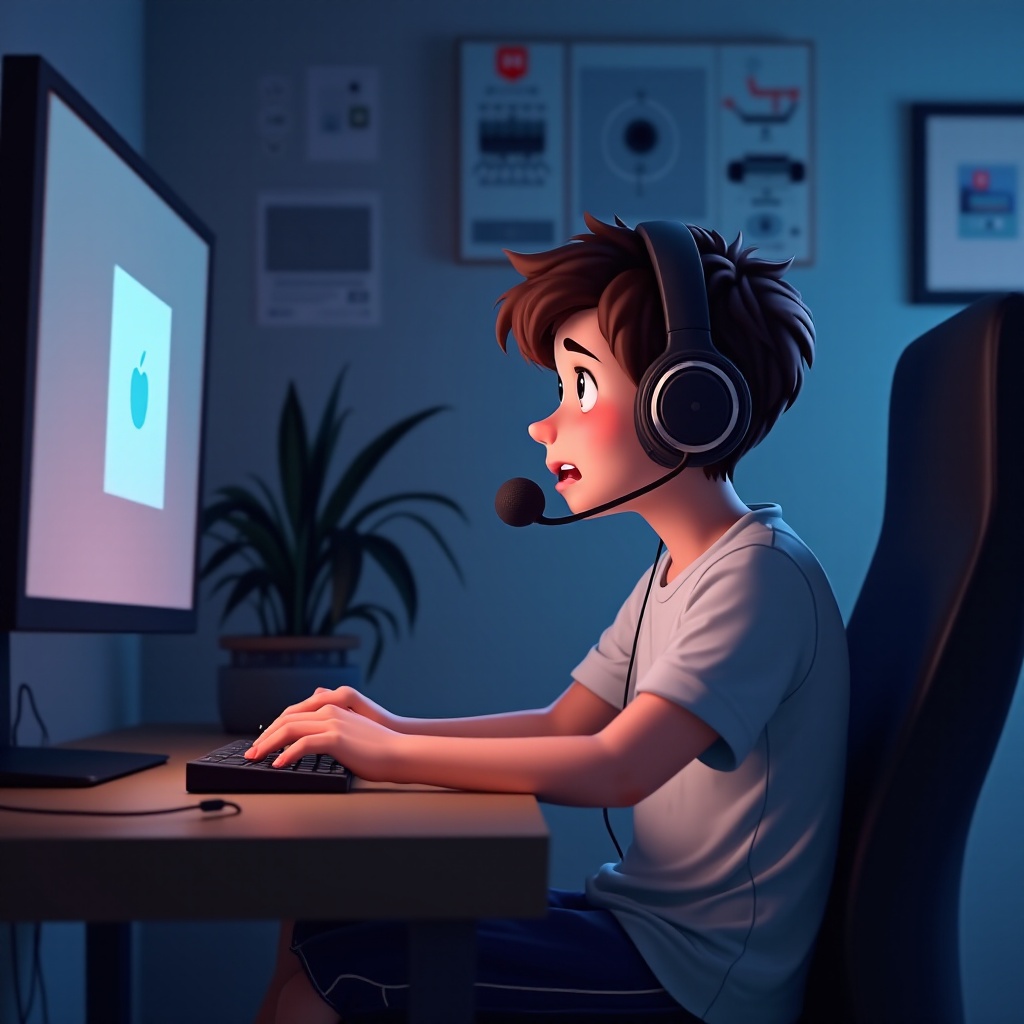
Common Causes of Microphone Issues in Roblox
Microphone problems may arise from various sources. By pinpointing the cause, you can apply the right solution more efficiently:
- Hardware Issues: Defective cables, connectivity problems, or broken microphones.
- Incorrect System Settings: Misconfigured default recording device or unrecognized microphone by the system.
- Application Permissions: Roblox must be allowed to access your microphone.
- Software Conflicts: Competing apps or outdated drivers might obstruct your mic’s functionality.
These factors often overlap, complicating the resolution process, but identifying them early can streamline troubleshooting.
Checking and Configuring Hardware Connections
Your initial step should be reviewing hardware connections:
- Inspect and Connect: Ensure that your microphone is plugged securely into the right port. Look for any visible damage.
- Test on Other Devices: By connecting your mic to another device, you can discern if the issue is with your hardware.
- Alternate Microphones: Use another mic to see if the problem persists.
Correct identification of a hardware fault simplifies subsequent troubleshooting, shifting the focus to software if necessary.
Adjusting System Sound Settings
Once hardware issues are addressed, verifying your system sound settings is crucial:
Setting the Default Recording Device
- Windows:
- Access ‘Control Panel’ > ‘Sound’.
-
Under ‘Recording’, right-click your microphone and select ‘Set as Default’.
-
Mac:
- Go to ‘System Preferences’ > ‘Sound’.
- Choose your microphone under the ‘Input’ tab.
Ensuring Proper Input Levels
- Navigate to ‘Microphone Properties’ on Windows or ‘Sound Input’ on Mac.
- Ensure your mic is not muted and adjust levels to optimize sound quality.
Testing Microphone Functionality
Verify your microphone using system tools:
- For Windows, try using the Sound Recorder.
- For Mac, utilize the Voice Memos app.
These system checks can confirm that your microphone is functioning before you return to gaming.
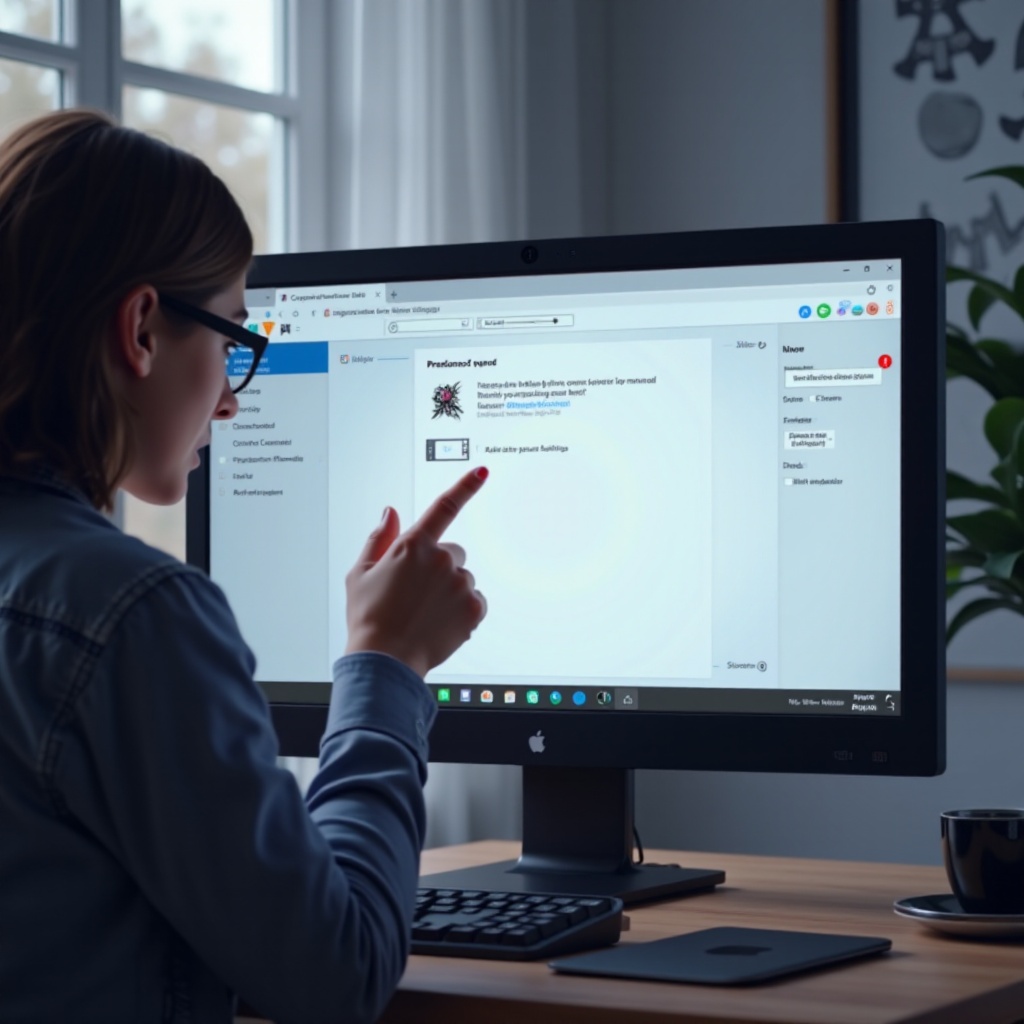
Configuring Roblox Audio Settings
After verifying system configurations, make sure Roblox settings are correctly configured:
Enabling Microphone Permissions
- Open Roblox and visit ‘Settings’.
- Go to ‘Privacy’ settings to enable voice chat options.
Adjusting In-Game Audio Settings
- Open the Roblox game menu and go to ‘Settings’.
- Under ‘Volume’, ensure microphones are enabled and properly adjusted.
Handling Specific Roblox Errors
- Should you receive error codes, use Roblox’s support resources for targeted solutions.
Following these steps should ensure that your microphone is ready for use within Roblox.
Resolving Application Permission Issues
Ensure that Roblox has the necessary permissions on your devices. This is often a culprit for unresolved mic problems.
Browser-Based Microphone Access
- Check your browser’s settings to confirm Roblox can use your mic.
- Clearing your browser’s cache and cookies can also alleviate permission issues.
Mobile Device Permissions
- iOS: Under ‘Settings’ > ‘Privacy’, ensure Roblox can access your microphone.
- Android: Navigate to ‘Settings’ > ‘Apps’ > ‘Roblox’ to verify microphone permissions.
With these configurations, microphone accessibility issues should no longer be a barrier.
Advanced Troubleshooting Tips
For persistent challenges, more in-depth troubleshooting may be necessary:
Updating Audio Drivers
- Regularly update your audio drivers through your device manager or the manufacturer’s online resources.
Identifying Software Conflicts
- Use Task Manager on Windows or Activity Monitor on Mac to identify and close conflicting applications.
Reinstalling Roblox
- If all else fails, reinstalling Roblox can eliminate persistent software glitches affecting microphone utility.
By following these methods, you should enjoy uninterrupted voice communication on Roblox.
Conclusion
Resolving microphone issues in Roblox involves a comprehensive review of hardware connections, system settings, and application permissions. By systematically addressing each potential problem area, you can restore effective communication swiftly and efficiently. These steps will keep you prepared for any future microphone troubles, ensuring a smooth gaming experience.
Frequently Asked Questions
Why can’t my friends hear me on Roblox?
Ensure your microphone is set as the default device and that you’ve granted voice permissions in both your system and Roblox settings.
How do I test my microphone on Roblox?
Check Roblox’s in-game audio settings and also run basic tests using system tools like Voice Recorder on Windows or Voice Memos on Mac.
Can software updates affect my microphone settings?
Yes, updates can alter existing configurations. Always verify and adjust microphone settings following system or application updates.