14 Jan 2026
Post by Elowenly
Introduction
Replacing your Verizon router with a personal choice can significantly enhance your internet experience. It allows you to tailor your network settings to your specific needs, improve performance, and often save on monthly rental fees. In this guide, we will cover everything you need to know about replacing your Verizon router, from selecting the right hardware to successfully configuring your new setup.

Why Replace Your Verizon Router?
Verizon’s default routers get the job done for basic internet users. However, tech-savvy individuals or those with specific needs may find them limiting. When you choose your own router, you open the door to a myriad of benefits:
- Performance: Third-party routers often provide superior speed and range.
- Control: Personal routers offer advanced customization options.
- Cost: Save money by avoiding rental fees from Verizon.
Understanding these benefits allows you to make a well-informed decision about replacing your router. The next step involves checking compatibility with Verizon’s services, an essential consideration in your selection process.
Understanding Compatibility
Before purchasing a new router, confirming its compatibility with Verizon Fios is crucial. Compatibility guarantees that the device will operate seamlessly with your existing internet service. Here’s how to ensure your choice is suitable:
- Check Specifications: Look for routers supporting Fios’s bandwidth.
- Research Models: Many forums and reviews, such as ones found on tech websites, list compatible devices.
- Contact Verizon Support: If unsure, a quick call to customer service can clarify if a router is supported.
This ensures that your investment in a new router does not go to waste. Once compatibility is established, it’s time to focus on selecting a router that meets your needs and provides the desired performance enhancements.
Selecting the Right Router for Your Needs
Choosing a router involves considering several factors like performance, range, and additional features that might cater to your unique requirements.
- Speed Needs: Match the router’s capabilities with your internet speed plan for optimal performance.
- Wi-Fi Coverage: Consider the size of your home to ensure full coverage.
- Features: Focus on security features, smart home integration, and parental controls if necessary.
Popular options compatible with Verizon include the Netgear Nighthawk series and ASUS routers known for their reliability. With your choice made, it’s essential to prepare for the installation.
Preparing for the Replacement Process
Switching routers isn’t complex, but preparation is crucial to avoid downtime. Here’s a checklist to ensure a smooth transition:
- Gather Equipment: Ensure you have all necessary cables and tools.
- Back-Up Settings: Keep a note of your current network settings to swiftly reconfigure connections on your devices.
- Read Manuals: Familiarize yourself with setup manuals for your new router.
Once prepared, you’re ready to proceed with the actual replacement, a critical phase in transitioning to a personalized network setup.
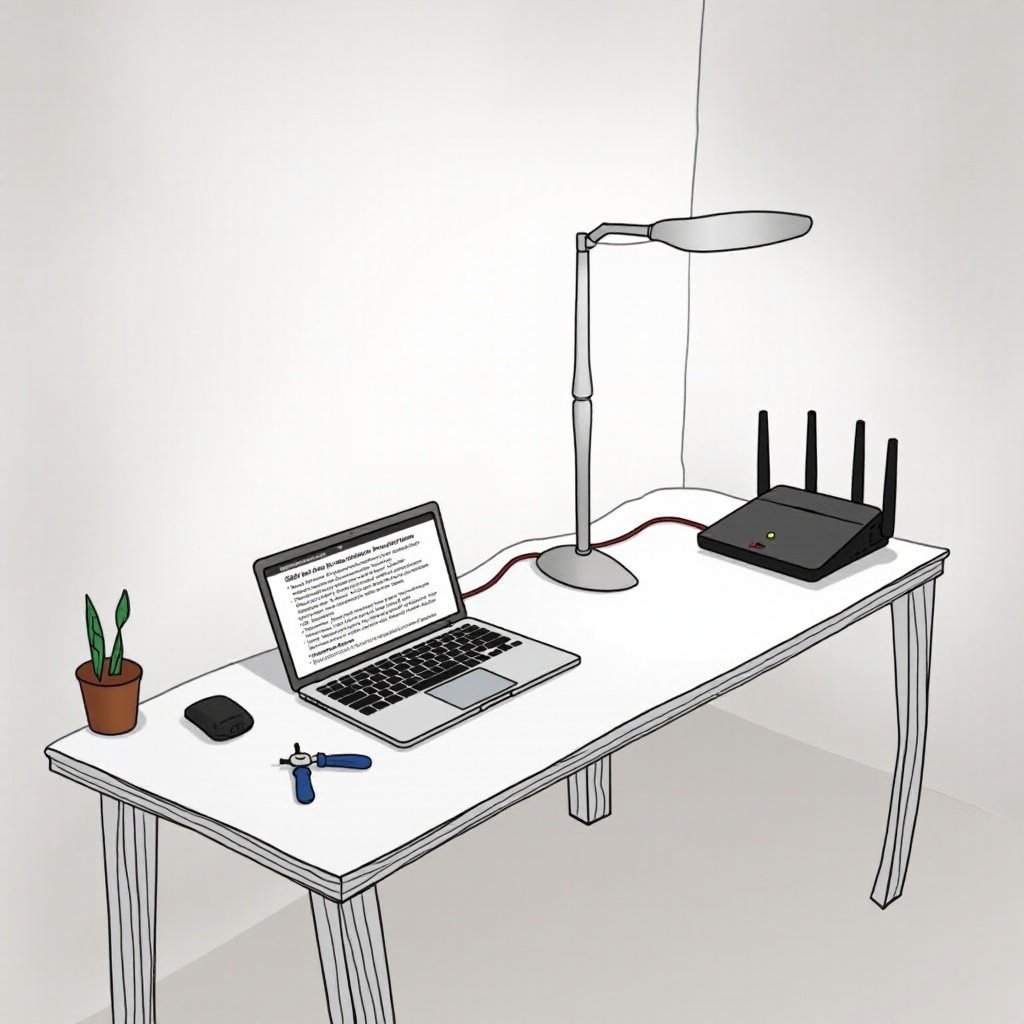
Step-by-Step Guide to Replacing Your Verizon Router
Replacing your Verizon router can be broken down into simple, manageable steps. Follow these to ensure a seamless transition:
- Disconnecting the Verizon Router:
- Unplug the router from the power source.
-
Disconnect all Ethernet and coaxial cables carefully.
-
Setting Up the New Router:
- Connect the new router using the same cables.
-
Power on the new router.
-
Configuring Network Settings:
- Access the router’s interface using a web browser.
- Set up your preferred network name (SSID) and password.
After setting up the hardware, it’s time to ensure everything is working correctly and optimize for the best performance.
Testing and Troubleshooting
Once the new router is configured, it’s vital to test its performance and troubleshoot common issues:
- Test Internet Speed: Use online tools to confirm expected speed increases.
- Connectivity Tests: Check all connected devices to ensure they can access the network.
- Troubleshooting: If issues arise, consult the router’s documentation or customer support as a resource.
With troubleshooting complete, you can focus on maximizing your new router’s performance by enabling advanced features and customization.

Enhancing Your Network Performance
To get the most out of your new router, consider implementing these tips for optimal speed and reliability:
- Positioning: Place the router in a central location, elevated and away from obstructions.
- Firmware Updates: Regularly update the router firmware to improve functionality and security.
- Advanced Settings: Explore QoS settings for prioritizing bandwidth and creating guest networks.
With everything running smoothly, you are set up for a superior internet experience. Let’s conclude what replacing your Verizon router with your own means for your network.
Conclusion
Replacing your Verizon router empowers you with better control over your home network, optimized speeds, and potential cost savings. With this guide, you now have the knowledge to undertake the switch confidently. Enjoy the enhanced connectivity and customized features of your new system. Share your experiences and help others by discussing your journey in forums or with friends.
Frequently Asked Questions
Can I use any router with Verizon Fios?
Typically, you need a router that supports the specific technologies and capabilities required for Verizon Fios. Ensure compatibility by checking manufacturer specifications.
Will replacing my router improve my internet speed?
Yes, a more advanced router can enhance speed, especially if paired with high-speed internet plans, by offering superior technology and features.
What are the risks of using a non-Verizon router?
While many third-party routers work well, a non-Verizon router might not support all features, such as certain types of TV service or Verizon’s customer support might be limited. Always check compatibility before making a switch.