
20 Dec 2025
Post by Elowenly
Introduction
Experiencing freezing issues on Xbox Series S can be incredibly frustrating, especially during intense gameplay moments. The Xbox Series S, renowned for its sleek design and advanced performance, sometimes encounters this problem, disrupting your gaming session and impacting your overall experience. Understanding and resolving these freezing issues is crucial for maintaining smooth operation and uninterrupted enjoyment. In this blog, we will explore the causes, troubleshooting techniques, and preventative measures to help you effectively overcome Xbox Series S freezing problems.

Understanding the Problem
Freezing on the Xbox Series S can arise from various sources, including software glitches, hardware issues, or environmental factors. Recognizing the root cause is the first step toward finding a viable solution.
- Software-related issues: Outdated system software or corrupted game files can impede smooth console operation.
- Hardware-related issues: Internal component malfunctions or inadequate console ventilation might lead to freezing.
- Environmental factors: Dust buildup, excessive heat, or poor air circulation around the console can negatively impact performance.
Grasping these causes helps in crafting a step-by-step plan to address them effectively. Let’s delve into practical solutions that can tackle these challenges.
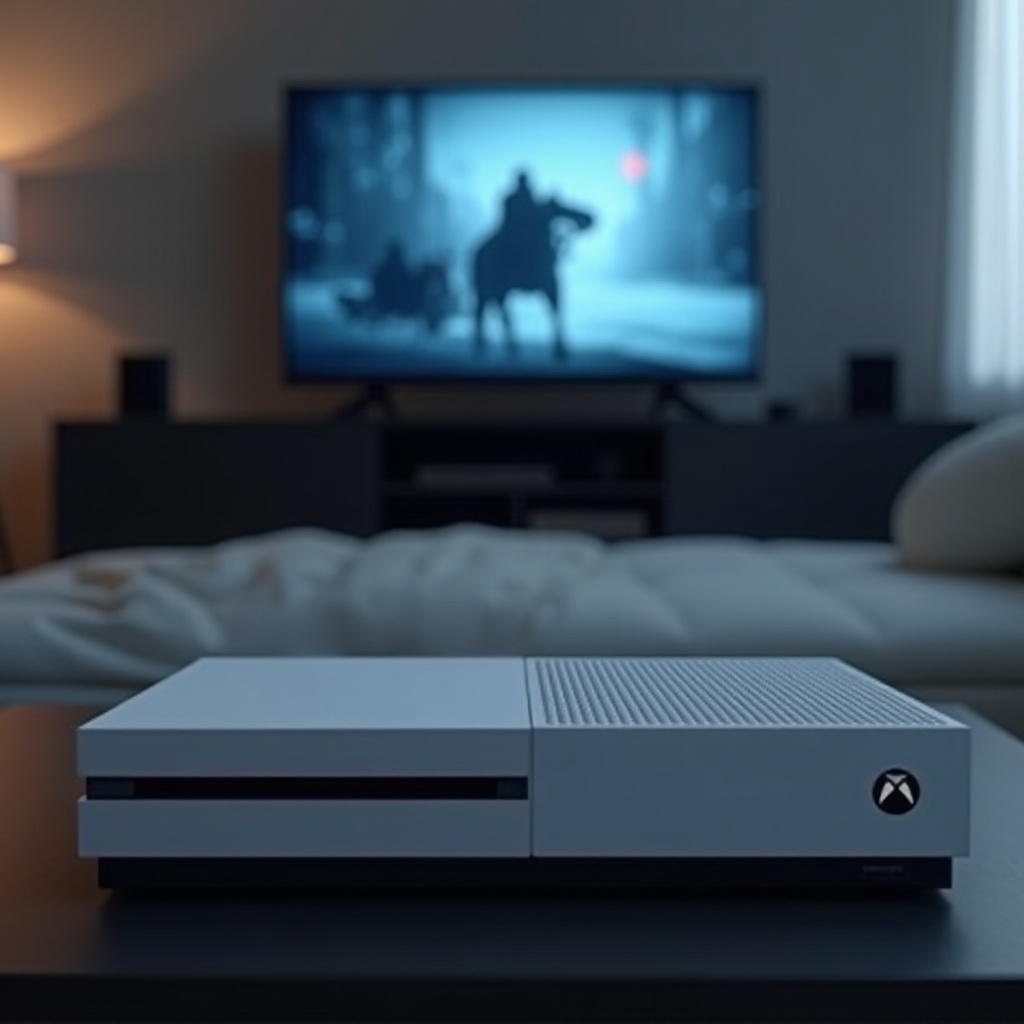
Basic Troubleshooting Steps
Before assuming a major issue, try these straightforward troubleshooting steps to resolve freezing problems:
-
Ensure Proper Ventilation and Cooling: Position your Xbox Series S in a well-ventilated area, ensuring vents are unobstructed to prevent overheating. Adequate airflow is essential.
-
Restart the Console: Sometimes, a simple restart can clear temporary system glitches that lead to freezing. It helps reset processes and clear the system cache.
-
Update System Software: Regular updates from Microsoft often fix bugs responsible for freezing. Connect to the internet and check for available updates to ensure your console is running the latest software.
Implementing these basic measures might solve minor freezing issues. If problems persist, advanced troubleshooting techniques could be necessary.
Advanced Solutions
If basic steps do not resolve freezing issues, more advanced approaches might be needed:
-
Reset the Console to Factory Settings: Persistent freezing could be due to deeper system issues. Consider a factory reset by navigating to system settings and selecting ‘Reset console’. Note that this action erases all saved data, so back up essential data first.
-
Manage Storage and Game Installations: A cluttered hard drive can lead to performance stalls.
- Checking for Corrupt Games or Apps: Uninstall and reinstall problematic games to ensure file integrity.
-
Utilizing External Storage Solutions: Use external storage options to free space on the internal drive for essential files only.
-
Testing and Replacing Potentially Faulty Hardware: Suspect faulty hardware such as the power supply or internal storage? Consider replacement options or a professional diagnosis to ensure no component is malfunctioning.
While these solutions can be more technical, they are highly effective. Prevention is crucial for long-term console performance. Let’s explore some preventive strategies next.
Preventive Measures for Smooth Performance
Preventing freezing issues before they arise saves time and enhances your gaming experience. Regular maintenance and proper care of your console are vital.
-
Regular Maintenance and Cleaning: Dust and debris can clog vents and affect air circulation. Use a soft brush or canned air to gently remove dust buildup from console vents.
-
Optimizing Game and System Settings: Adjust game resolution settings or limit unnecessary background apps to reduce system stress, optimizing performance for smoother play.
By following these preventive strategies, you lower the risk of encountering freezing issues, ensuring a steady, enjoyable gaming experience.

When to Seek Professional Help
If troubleshooting and preventive measures don’t solve freezing problems, consider seeking professional assistance.
-
Identifying Hardware Failure Signs: Persistent freezing, even after troubleshooting, might suggest hardware issues such as a faulty hard drive or GPU.
-
Understanding Warranty and Support Options: Check if your console is under warranty, which might offer free repairs or replacements. When contacting Xbox Support, describe the issue comprehensively for quicker resolution.
Seeking expert help early can diagnose critical hardware issues and restore your console’s full functionality.
Conclusion
By understanding, troubleshooting, and preventing Xbox Series S freezing issues, you can ensure a smooth and consistent gaming experience. Remember, regular console maintenance and timely software updates are key to enhancing performance. If problems persist, do not hesitate to seek professional help to keep your Xbox functioning at its best.
Frequently Asked Questions
What should I do if my Xbox Series S continues to freeze after troubleshooting?
If your console continues to freeze despite troubleshooting, further professional assessment is advisable. This could indicate a more significant issue that requires expert evaluation.
Does Xbox Series S freezing mean there’s a hardware problem?
Not necessarily. While some freezing issues are hardware-related, software glitches or environmental factors could also be the culprits. Begin with software troubleshooting to narrow down the cause.
How often should I perform maintenance to prevent freezing?
To avoid freezing issues, perform regular maintenance monthly. This includes cleaning the console, updating software, and managing storage effectively.