
23 Feb 2026
Post by Elowenly
Introduction
Making international calls on your iPhone is simpler than you might think. Whether you’re connecting with loved ones abroad or coordinating with international colleagues, having a straightforward guide ensures a seamless experience. In this article, we will walk you through everything you need to know for dialing internationally on your iPhone.
Understanding International Dialing Basics
International calls require a combination of numbers to ensure the call reaches the correct destination. Grasping these dialing basics will set the foundation:
- Exit Codes: This number signals your carrier about making a call outside your country. North Americans commonly use ‘011’ or the ‘+’ symbol, which automatically substitutes it.
- Country Codes: Different countries have unique codes, like ‘1’ for the USA/Canada and ’44’ for the UK.
- Local Numbers: After inserting the exit and country codes, dial the recipient’s local number.
With these components well understood, you can now ensure your iPhone is set up properly for making such calls.
Setting Up Your iPhone for International Calls
To make international calls effectively, it’s crucial your iPhone settings are optimized:
- Unlock Your iPhone: Confirm with your carrier that your device is unlocked for international use. This is a prerequisite for many.
- Enable Roaming: Navigate to Settings > Cellular > Cellular Data Options, and ensure that Data Roaming is turned on.
- Choose an International Plan: Some carriers offer special international calling plans. Enquire if such offers can reduce your call charges.
This setup assures that your device is primed for international dialing, facilitating the step-by-step guide next.
Step-by-Step Guide to Dial Internationally on iPhone
Equipped with your settings, you are ready to place an international call:
- Open the Phone app: Locate the green icon on your home screen.
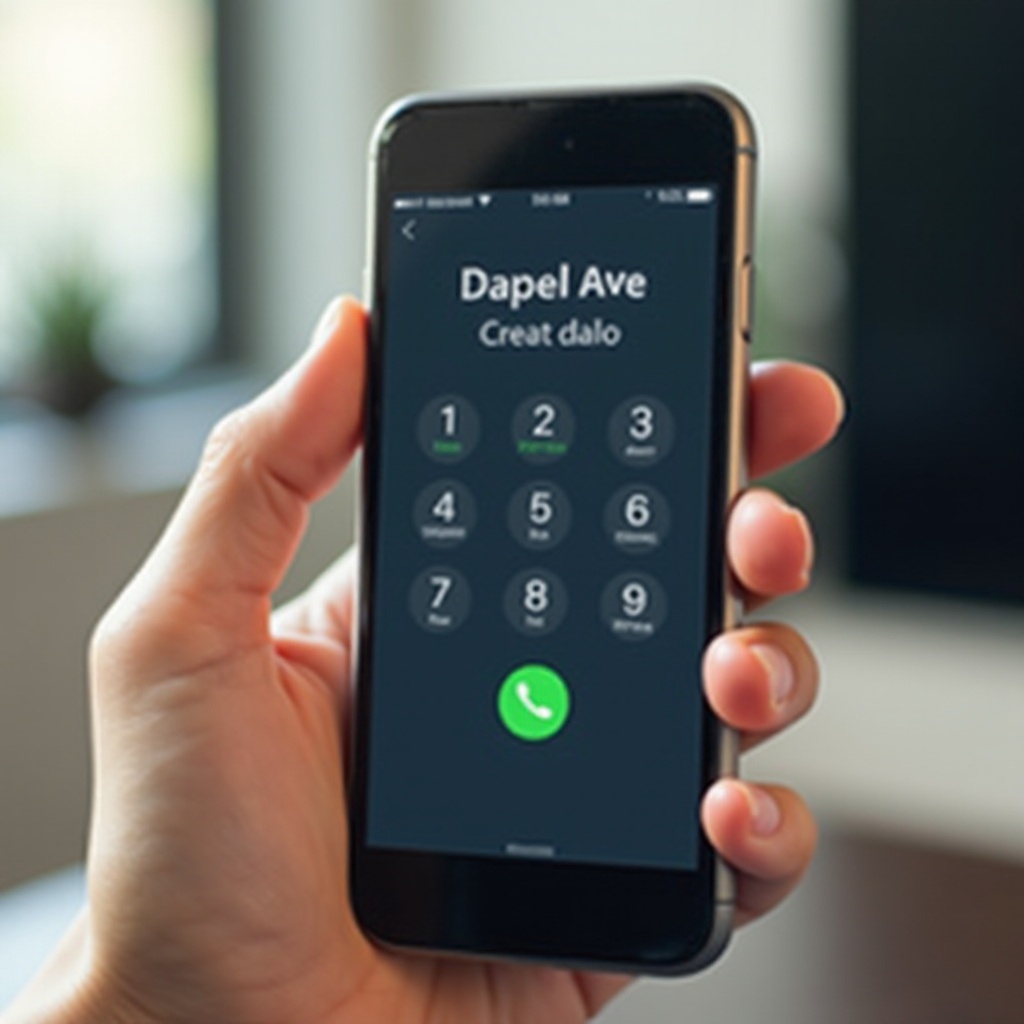
- Access the Dial Pad: Select the ‘Keypad’ at the bottom of the screen.
- Enter the Exit Code or ‘+’: Press and hold ‘0’ until ‘+’ appears.
- Input the Country Code: Add the designated code for the target country.
- Dial the Local Number: Finish by typing out the local number.
Example: To call the UK from the USA, input ‘+44’ followed by the local phone number. Your international call should now be successfully connected.
Troubleshooting Common Issues
While dialing internationally is usually straightforward, occasional issues may arise, such as:
- Issues Connecting: Check both your country and exit codes for accuracy, and ensure roaming features are on.
- Call Quality: Ensure a stable Wi-Fi connection; this often improves call clarity.
- Roaming Problems: Confirm that international roaming is operational in your device settings.
Armed with solutions to these problems, we delve into additional tips to enhance your international calling experience.

Additional Tips for International Calling
Improve your calling efficiency and save costs by following these suggestions:
- Correctly Store Numbers: Save numbers with ‘+’ and the country code to easily dial them again.
- Enable Wi-Fi Calling: Enable this in Settings > Phone > Wi-Fi Calling; it can reduce costs significantly.
- Explore Apps: Consider WhatsApp or Skype for potentially cheaper or even free international calls.
Remember these pointers to keep your bills in check and your connections stable, while maintaining safety standards during calls.
Safety and Security Tips
While it’s essential to stay connected, it’s just as crucial to ensure your protection:
- Guard your Privacy: Double-check unfamiliar numbers before dialing them, and scrutinize any numbers attached to unexpected charges.
- Scam Awareness: Be vigilant regarding scam calls. Do not respond to suspicious international call requests.
By keeping safety in mind, you secure your communication integrity, bringing us to succinctly wrapping up this guide.
Conclusion
Knowing how to dial internationally on your iPhone enhances both personal and professional connections. By following these straightforward steps and staying informed about the necessary settings and precautions, you’re set to communicate globally with ease.
Frequently Asked Questions
How do I find the country code I need to use?
Country codes can be quickly found online or through various communication apps that list codes for you.
Will I incur extra charges for international calls on my iPhone?
Yes, international calls may incur extra charges unless you have an international plan. Check rates with your carrier beforehand.
Can I use FaceTime for international calls instead of regular dialing?
Yes, FaceTime enables you to make free international calls over the internet, provided you have Wi-Fi or cellular data.