18 Feb 2026
Post by Elowenly
Introduction
Connecting a PS4 controller to a different console often comes in handy, whether you are co-op gaming with friends or optimizing setup at home. In seamless and effective gaming, your ability to reassign controllers efficiently is paramount. This guide elucidates the steps for connecting your PS4 controller to other consoles, ensuring an uninterrupted gaming experience. You will also learn troubleshooting techniques and performance optimization tips.

Understanding Your PS4 Controller
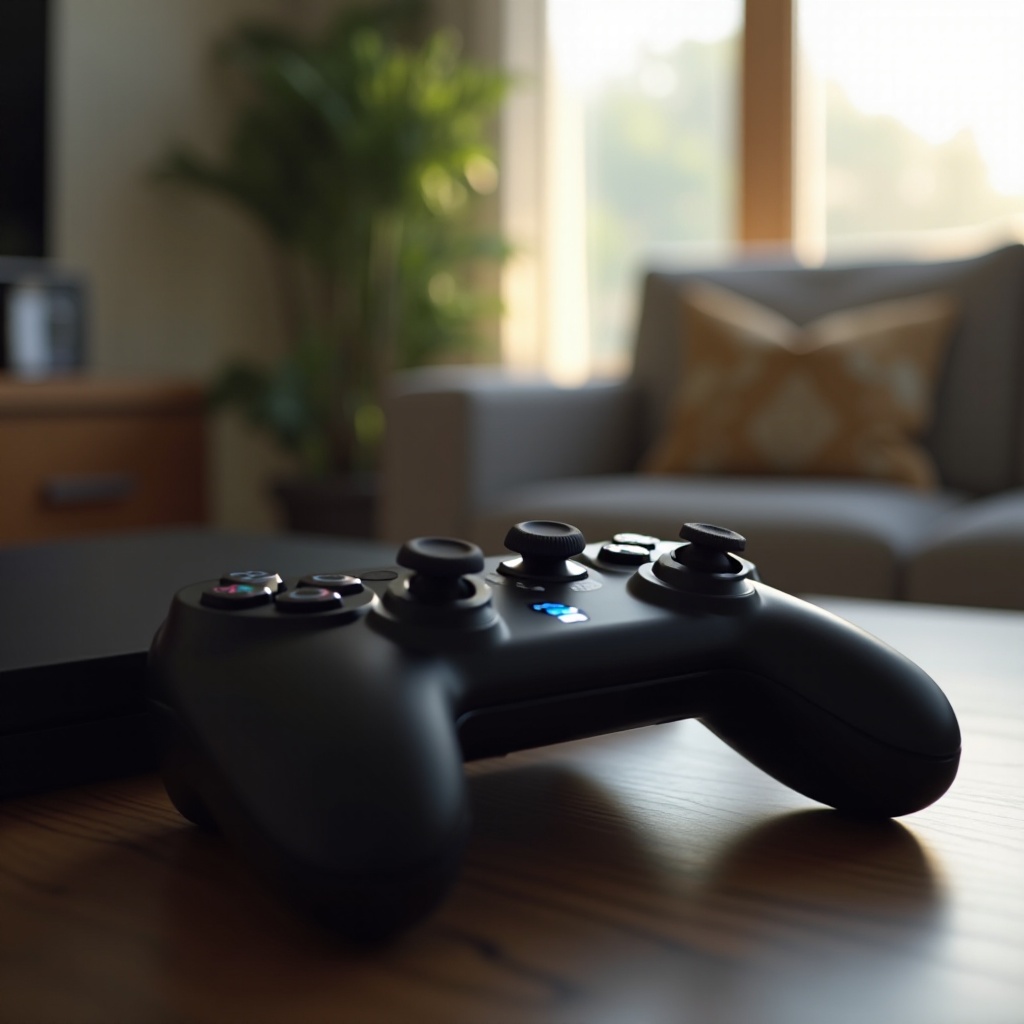
The DualShock 4 controller presents a mix of state-of-the-art technology to enhance your gaming escapade. It connects via USB for a wired experience or through Bluetooth for wireless freedom. Recognizing the features can facilitate an informed decision when switching consoles. Each PS4 model may have subtle differences in compatibility requirements, and understanding these can help streamline the connection process.
Preparation Before Connecting
It’s crucial to prepare before you begin the connection process—having the right tools and ensuring compatibility sets the groundwork for success.
-
Gather Necessary Tools and Cables: Keep a USB charging cable within reach for the initial setup. It’s the key to establishing a secure, wired connection before shifting to a wireless configuration.
-
Ensuring Controller and Console Compatibility: Both your console and controller need the latest firmware updates. Without updated software, you might face connectivity hitches or impair the performance.
Following these steps keeps the processes fluid and minimizes the risk of any setup obstructions.
Connecting Your PS4 Controller
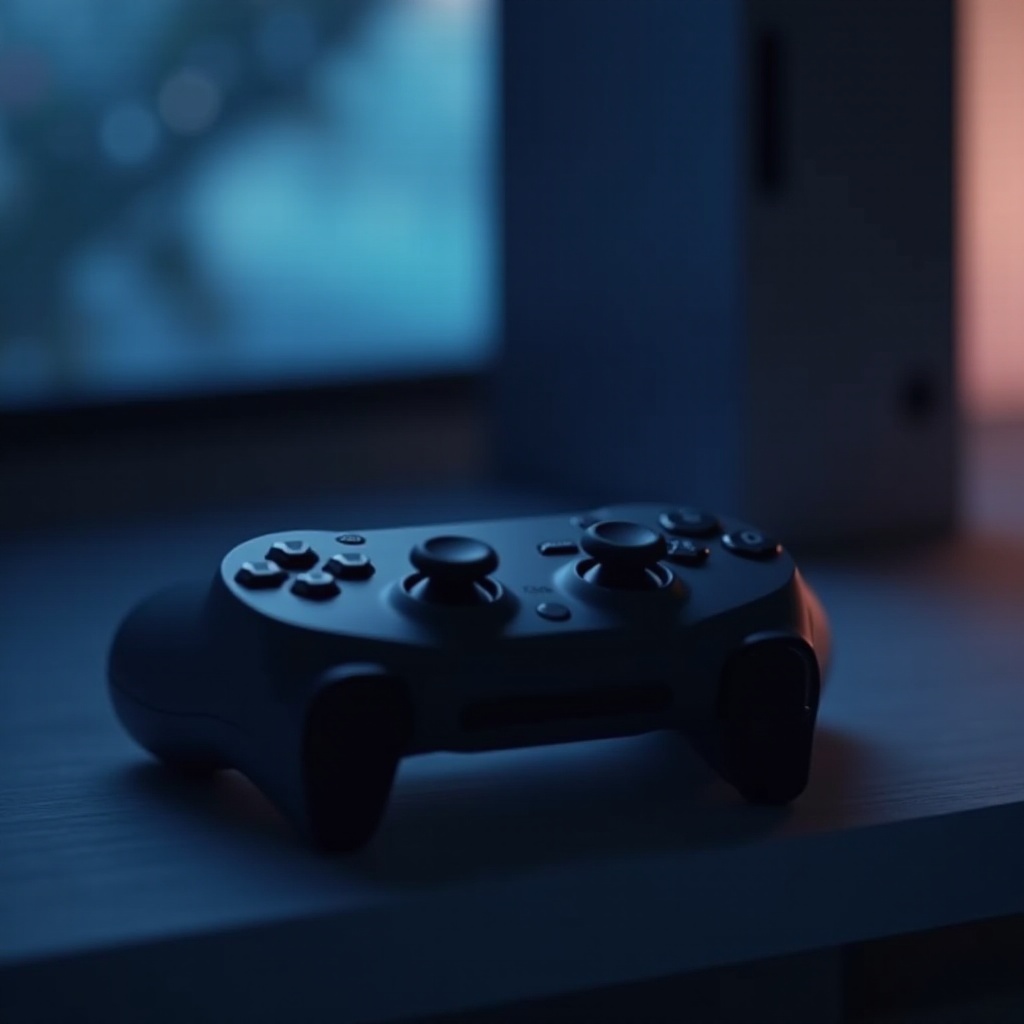
There are two primary methods to connect your PS4 controller—wired and wireless. Each has its merits depending on your setup preferences.
- Wired Connection Method:
- Start by powering off your PS4 console.
- Plug the DualShock 4 controller into the console using a USB cable.
- Power on the console from the front panel.
-
Press the PS button on your controller. The color change on the light bar signifies successful pairing.
-
Wireless/Bluetooth Connection Method:
- First, disconnect from the current console by pressing the PS and Share buttons until the light bar flashes.
- Head to ‘Settings’ on the new console, navigate to ‘Devices,’ then ‘Bluetooth Devices.
- Press and hold the PS and Share buttons on the controller until rapid flashing begins.
- Select your controller from the Bluetooth devices list to pair.
Choosing between wired and wireless connection depends on your priority for stability or convenience. Now, even if switching setups, you can achieve a reliable connection effortlessly.
Troubleshooting Common Connection Issues
Despite following procedures, connection issues might occur. Here’s how to manage common problems that arise during the process.
-
Resetting Your PS4 Controller: Locate the reset button adjacent to the L2 shoulder. Use a pin to press inside the tiny hole, clearing older connections.
-
Dealing with Connection Failures: Ensure your console’s Bluetooth settings are correct, and check surrounding devices; they might cause signal interference.
-
Updating Controller Firmware: Periodically check that both the PS4 and the controller firmware are current to prevent performance issues.
Addressing these issues promptly ensures consistent connectivity and enhances gaming satisfaction.
Maintaining and Optimizing Controller Performance
In addition to connection management, upholding your PS4 controller is equally essential for enduring performance.
-
Battery Management Tips: Practice frequent charging but avoid complete depletion to extend battery lifespan.
-
Cleaning and Storage Recommendations: A gentle monthly clean with a microfiber cloth helps keep the controller pristine. Store in a moisture-free area to avoid circuit damage.
Such practices help maintain a performance level that guarantees excellent gameplay across any console.
Conclusion
With the outlined steps, connecting your PS4 controller to different consoles becomes a straightforward task. Detailed preparation, connection instructions, troubleshooting advice, and maintenance tips guarantee effortless transitions. This holistic approach helps tailor your gaming sessions uniquely and effectively, providing a continuous, engaging experience.
Frequently Asked Questions
Can I connect my PS4 controller to more than one PS4?
Yes, you can pair your controller with multiple consoles, but it will remain connected to only one at a time. Re-pair when switching.
What do I do if my PS4 controller won’t connect to another console?
Try resetting the controller, ensuring the console’s Bluetooth is active, and check for the latest firmware updates on both devices.
Is a wireless or wired connection better for PS4 controllers?
Wired connections offer stability during setup, while wireless connections provide convenience and are ideal when freedom of movement is desired.